
Cherry Studio
Cherry Studio includes several built-in providers, but ModelGo is not one of them. Use Cherry Studio's Custom Provider flow to create a ModelGo provider, then fetch and add the models you need. ModelGo exposes both OpenAI-compatible and Anthropic-compatible endpoints.
Prerequisites
- Cherry Studio is installed and you can open its Settings page.
- You have created or copied an API key in the ModelGo console.
- You have confirmed the logical model ID to use in the model catalog.
1. Open model service settings
Open Cherry Studio Settings, go to Model Services, and click + Add Provider at the bottom of the provider list.
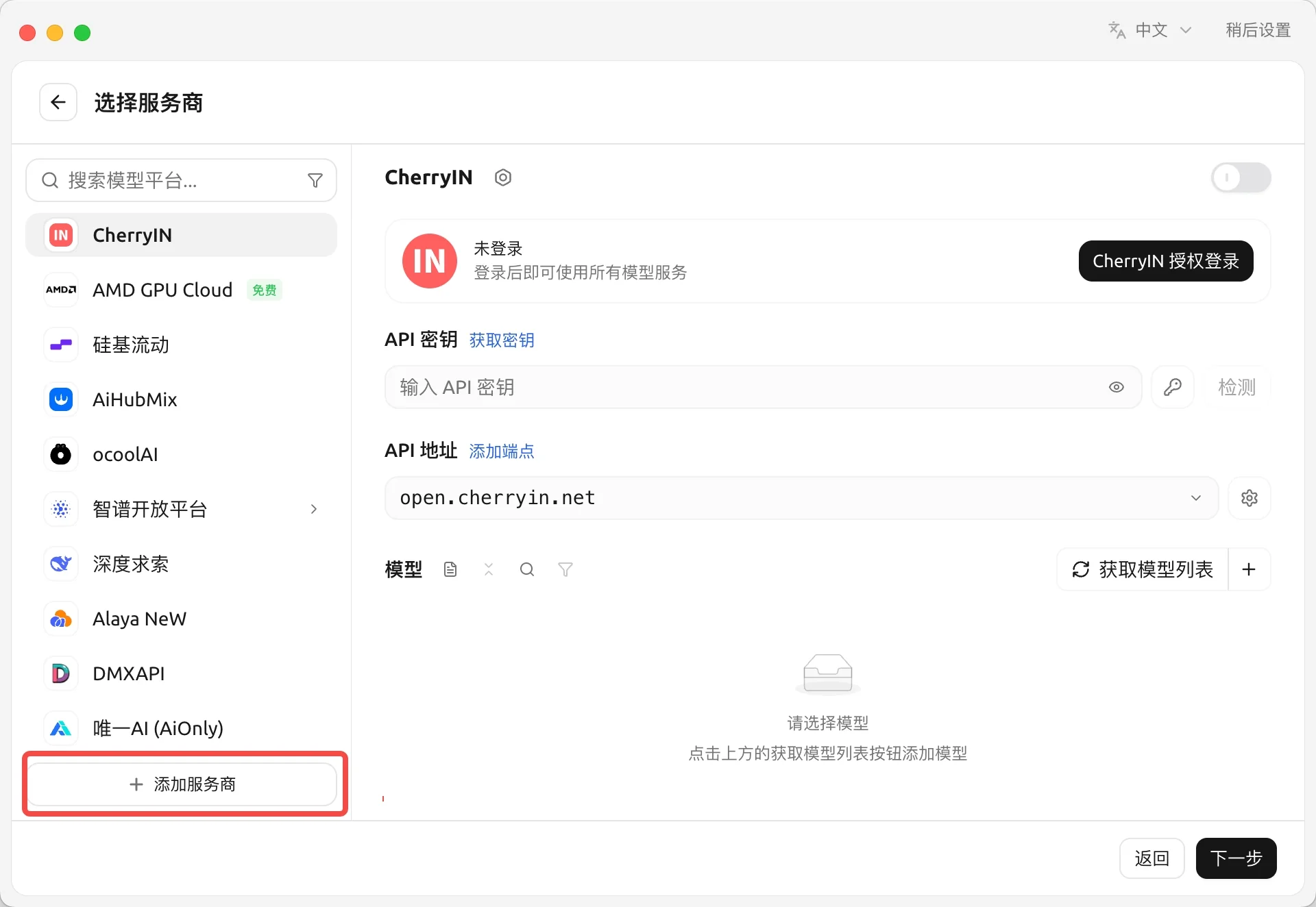
2. Add a custom provider
In the Add Custom Provider dialog, enter:
| Setting | Value for international ModelGo |
|---|---|
| Provider name | ModelGo |
| API key | The API key created in the ModelGo console |
| OpenAI endpoint | https://api.modelgo.ai/v1 |
| Anthropic endpoint | https://api.modelgo.ai (only for Anthropic-compatible models or Agent mode) |
Click Add to save the provider. Use the OpenAI endpoint for regular chats and model discovery. Do not append /v1 to the Anthropic endpoint; Cherry Studio builds the protocol path for you.
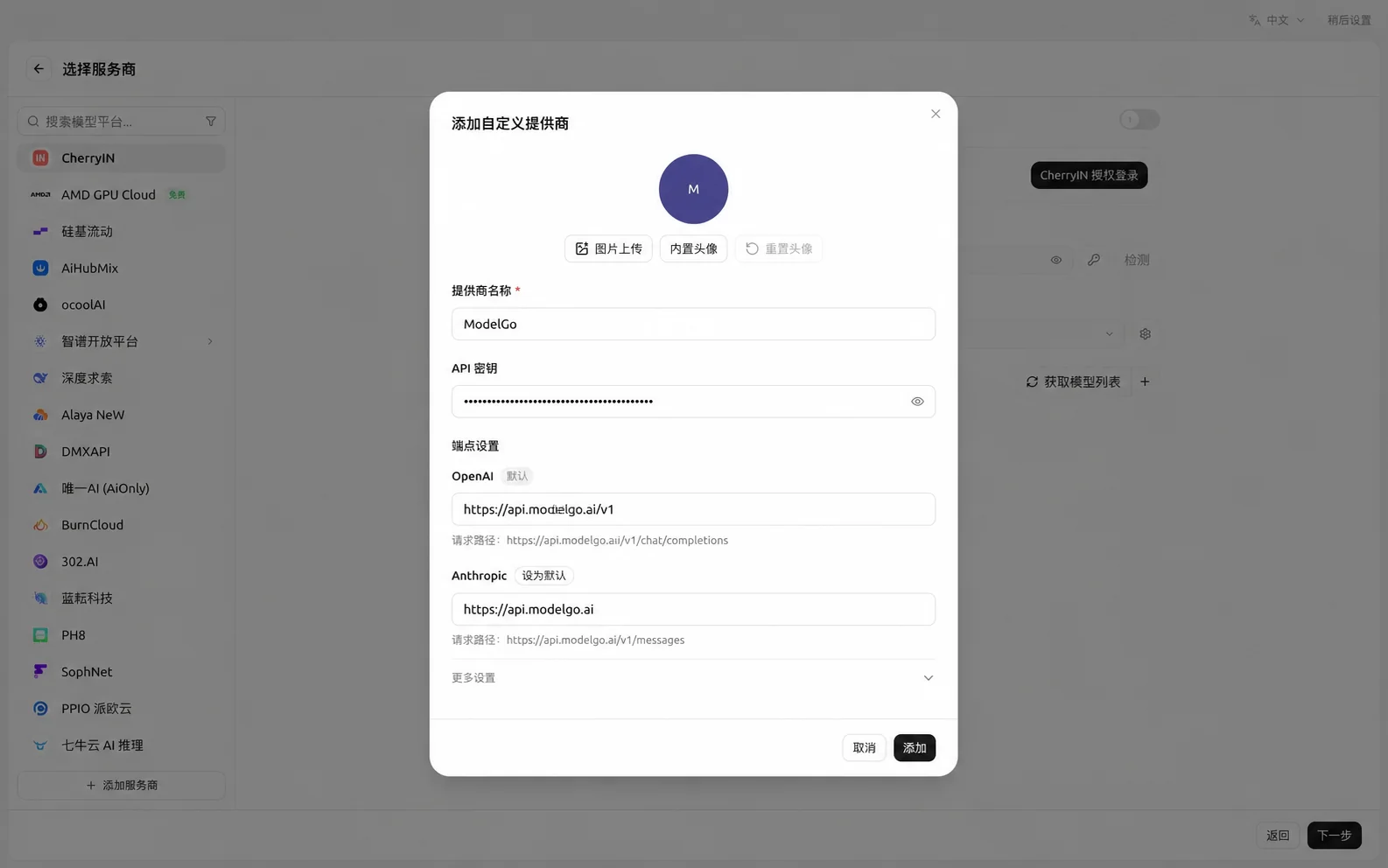
3. Fetch and add models
Return to the ModelGo provider page and click Get Models. Cherry Studio reads the logical models available to the current API key.
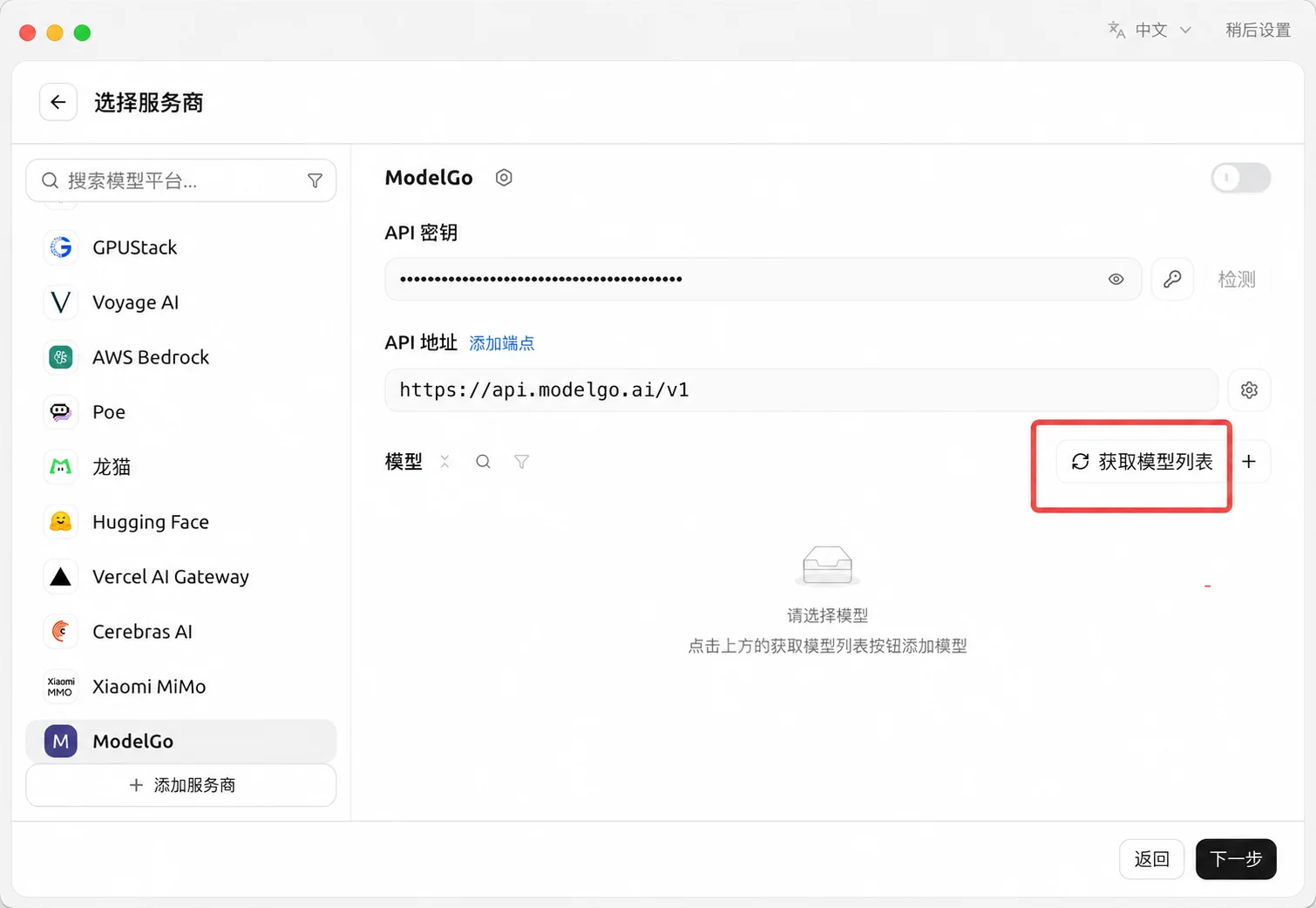
In the model picker, click + next to individual models or choose Add All Models.
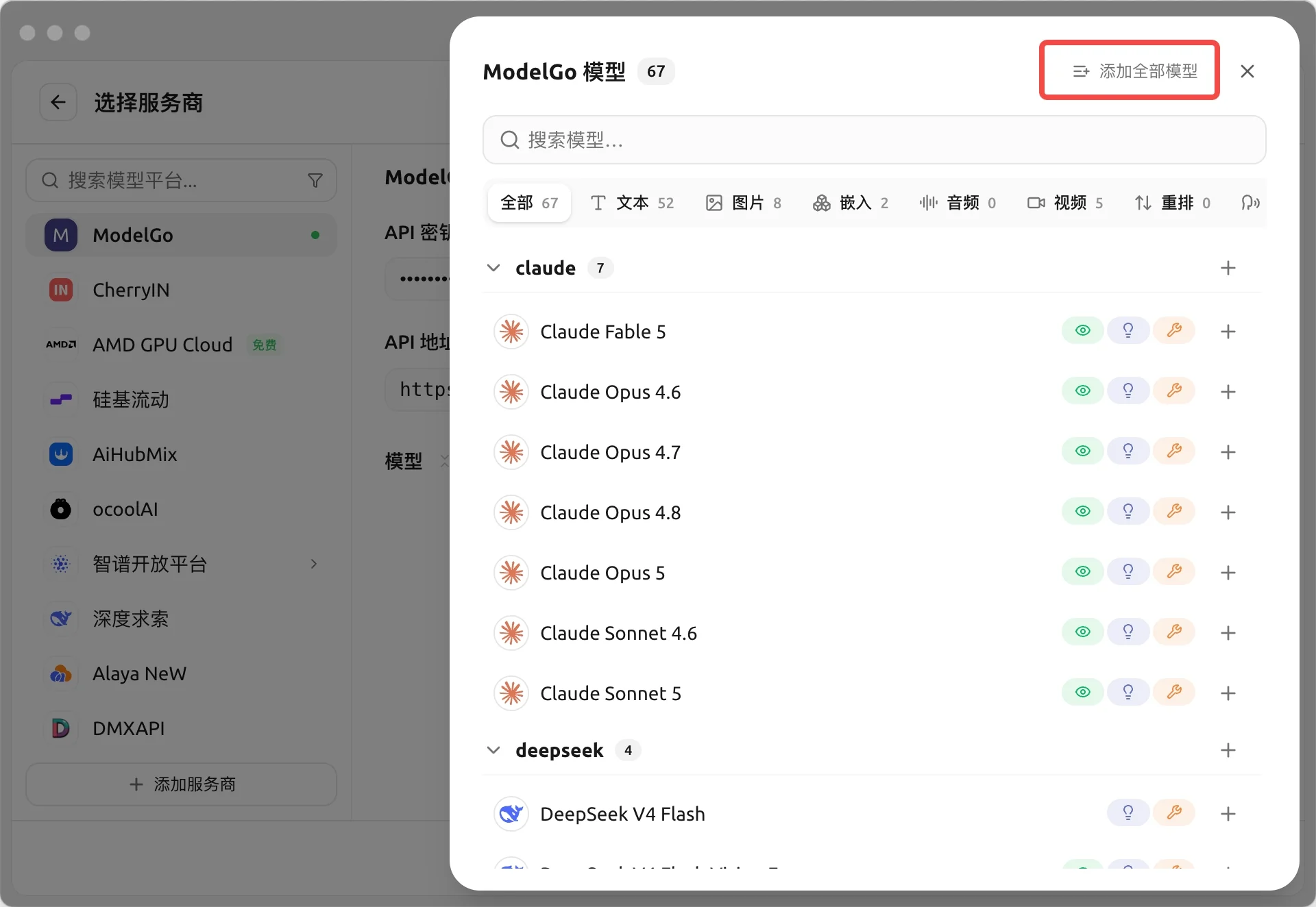
Added models appear in the ModelGo provider's model section. Adding only the models you use keeps the model picker easier to navigate.
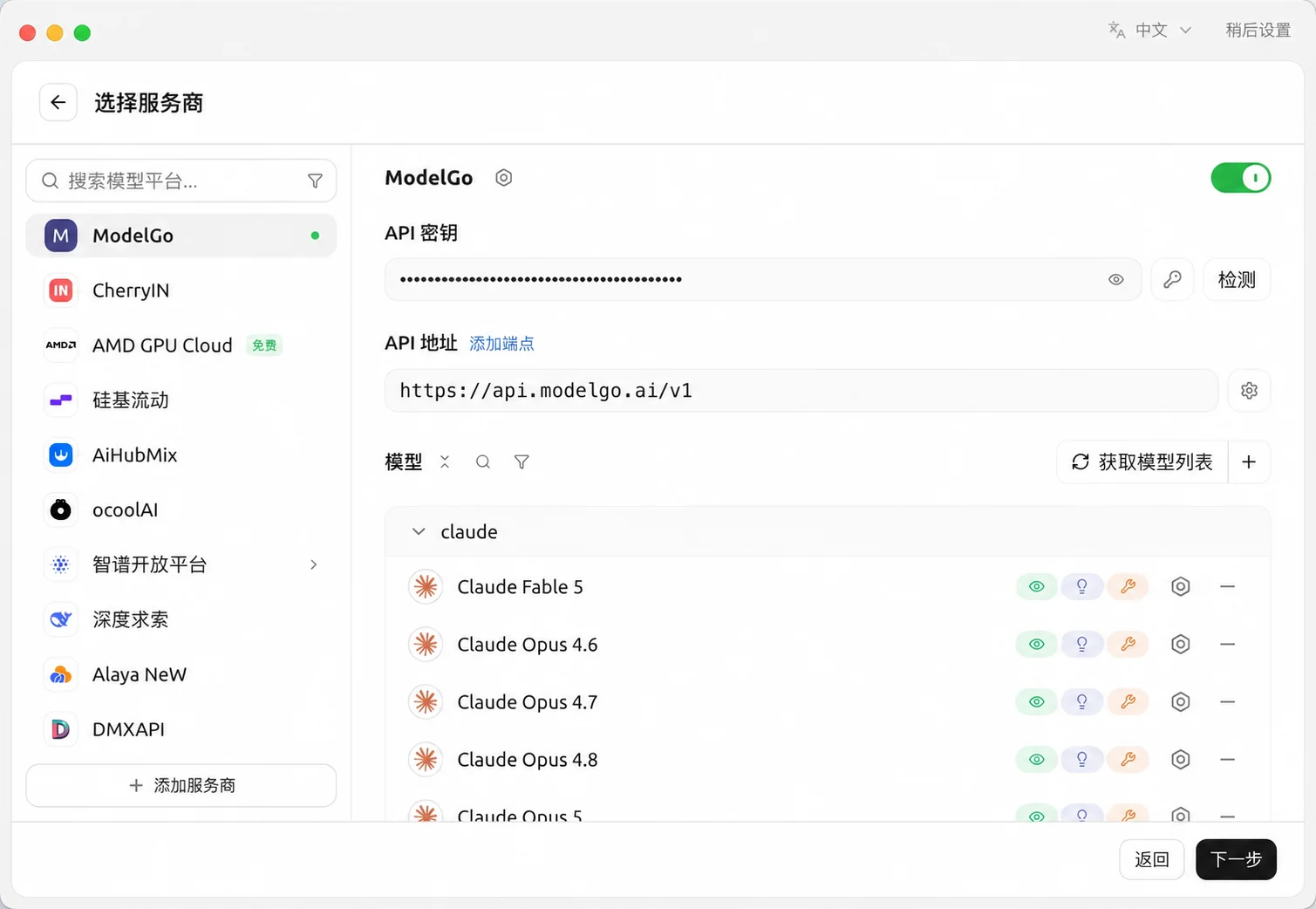
4. Enable the provider and start chatting
Turn on the switch in the upper-right corner of the ModelGo provider page and run the API key check. Start a new chat, select ModelGo and one of the models you added, then send a short message.
For OpenAI-compatible models, the OpenAI endpoint is enough. For Claude or Cherry Studio Agent mode, configure the Anthropic endpoint and add an Anthropic-compatible model as well.
Verify the configuration
You can verify model discovery from a terminal:
export MODELGO_API_KEY="sk-your-token"
curl https://api.modelgo.ai/v1/models \
  -H "Authorization: Bearer $MODELGO_API_KEY"
The id values in the response are the logical ModelGo model IDs to add in Cherry Studio.
Troubleshooting
401 or authentication failure
Check that the API key was copied in full with no extra spaces, and that the provider switch is enabled.
404 or an invalid endpoint path
Set the OpenAI endpoint to https://api.modelgo.ai/v1 and the Anthropic endpoint to https://api.modelgo.ai. Do not enter the complete /v1/chat/completions or /v1/messages path.
The model list is empty
First verify /v1/models with the curl command above, then confirm the model is enabled for your API key in the model catalog. After fetching, click + or Add All Models; fetching alone does not add models to the picker.
Agent mode cannot send a request
Set the Anthropic endpoint to https://api.modelgo.ai and add a model that supports the Anthropic-compatible protocol. The Anthropic endpoint is not required for ordinary OpenAI-compatible chats.
Related documentation
- First call: Create an API key, inspect models, and verify a ModelGo request.
- Authentication: Learn how to keep API keys safe.
- Cherry Studio custom providers: Follow Cherry Studio's official custom-provider flow.
- Cherry Studio provider settings: Learn how Base URLs, model management, and connection checks work.