
ZCode
ZCode is a desktop AI coding environment from Zhipu AI for Windows, macOS, and Linux. It supports custom OpenAI-compatible providers, so you can use ModelGo models and API keys directly in ZCode.
Before you start
- Install the ZCode desktop app.
- Create an API key in the ModelGo console.
- Confirm a logical model name that the API key can call in the Model catalog.
1. Install ZCode
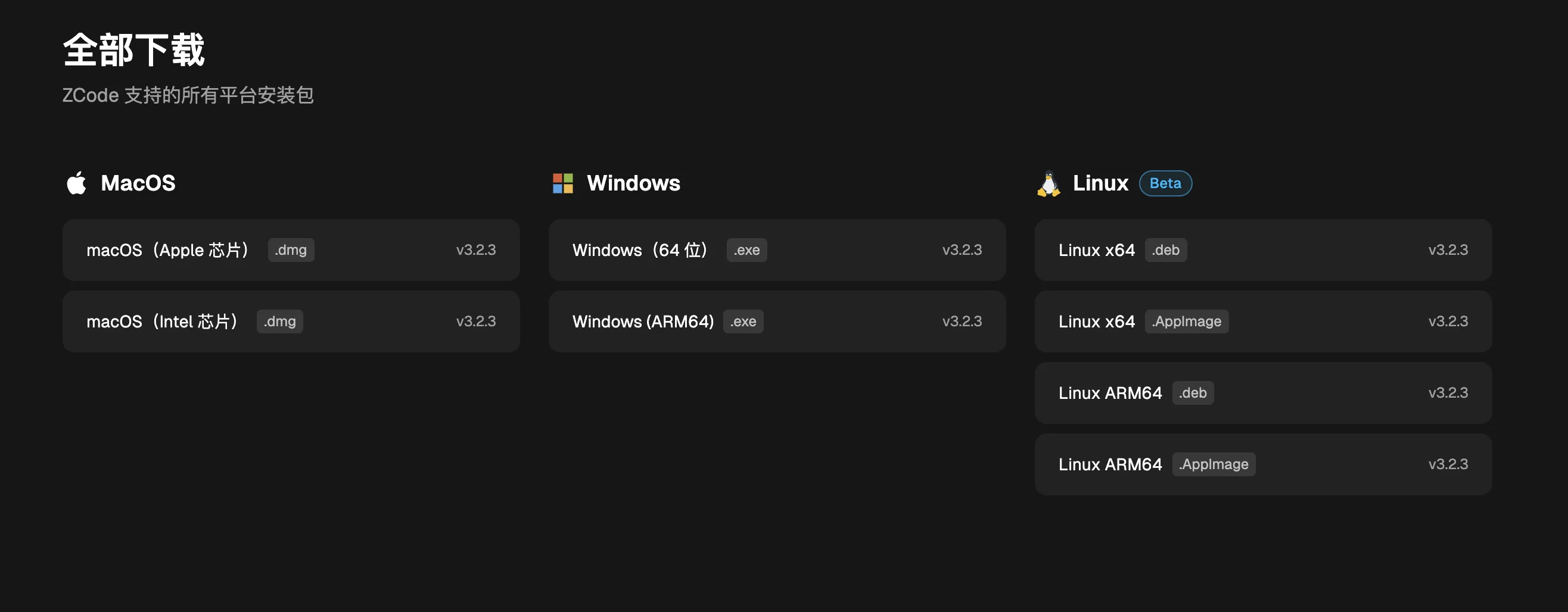
Open the ZCode download page and download the package for your operating system. ZCode provides macOS, Windows, and Linux builds; Linux users can choose .deb, .rpm, or AppImage.
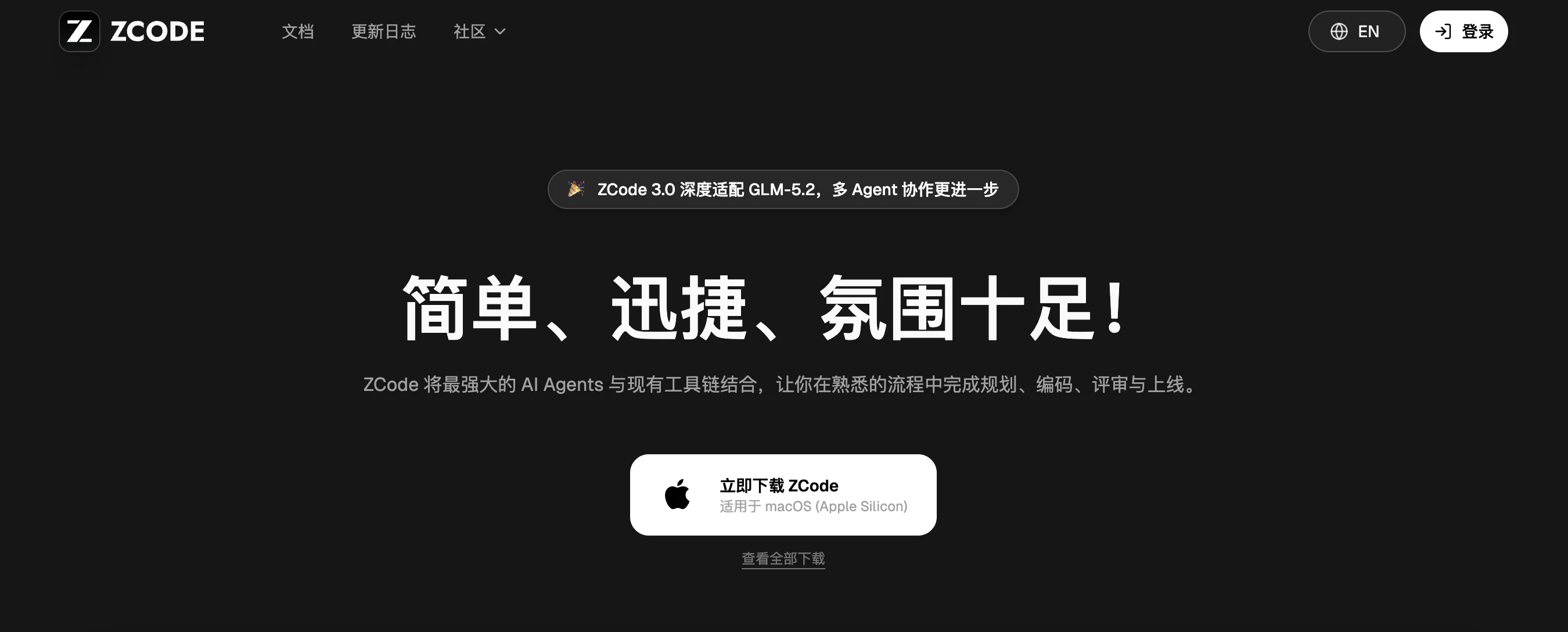
Complete the installation and launch ZCode. On first launch, choose a workspace and finish the onboarding flow to reach the main interface.
2. Add the ModelGo provider
Click the settings icon in the lower-left corner, open Model settings, then click Add provider at the bottom of the provider list.
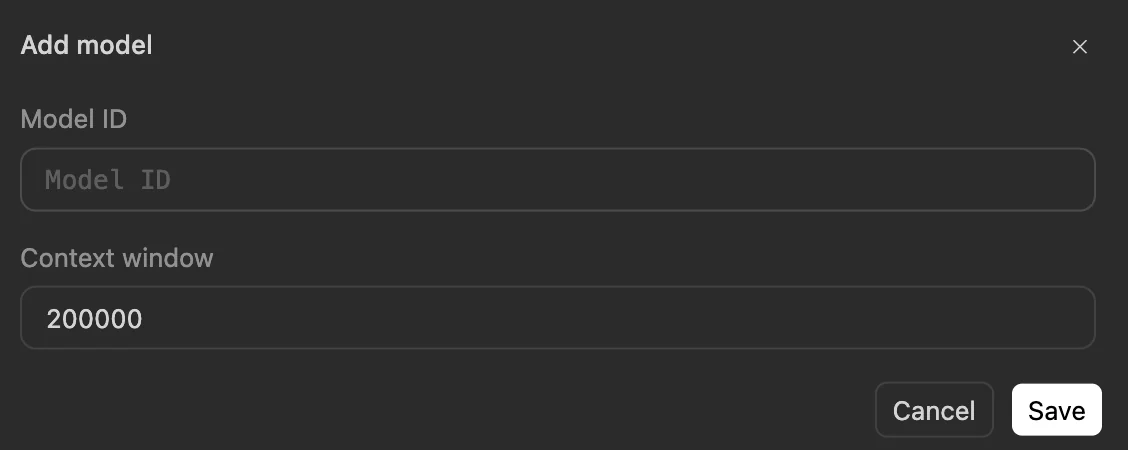
Enter the following values:
| Setting | ModelGo value |
|---|---|
| Name | ModelGo |
| Base URL | https://api.modelgo.ai/v1 |
| API Key | A ModelGo API key created in the console |
| API format | Chat completions (/chat/completions) |
| Model list | Click Add model and enter a logical model name from the model catalog |
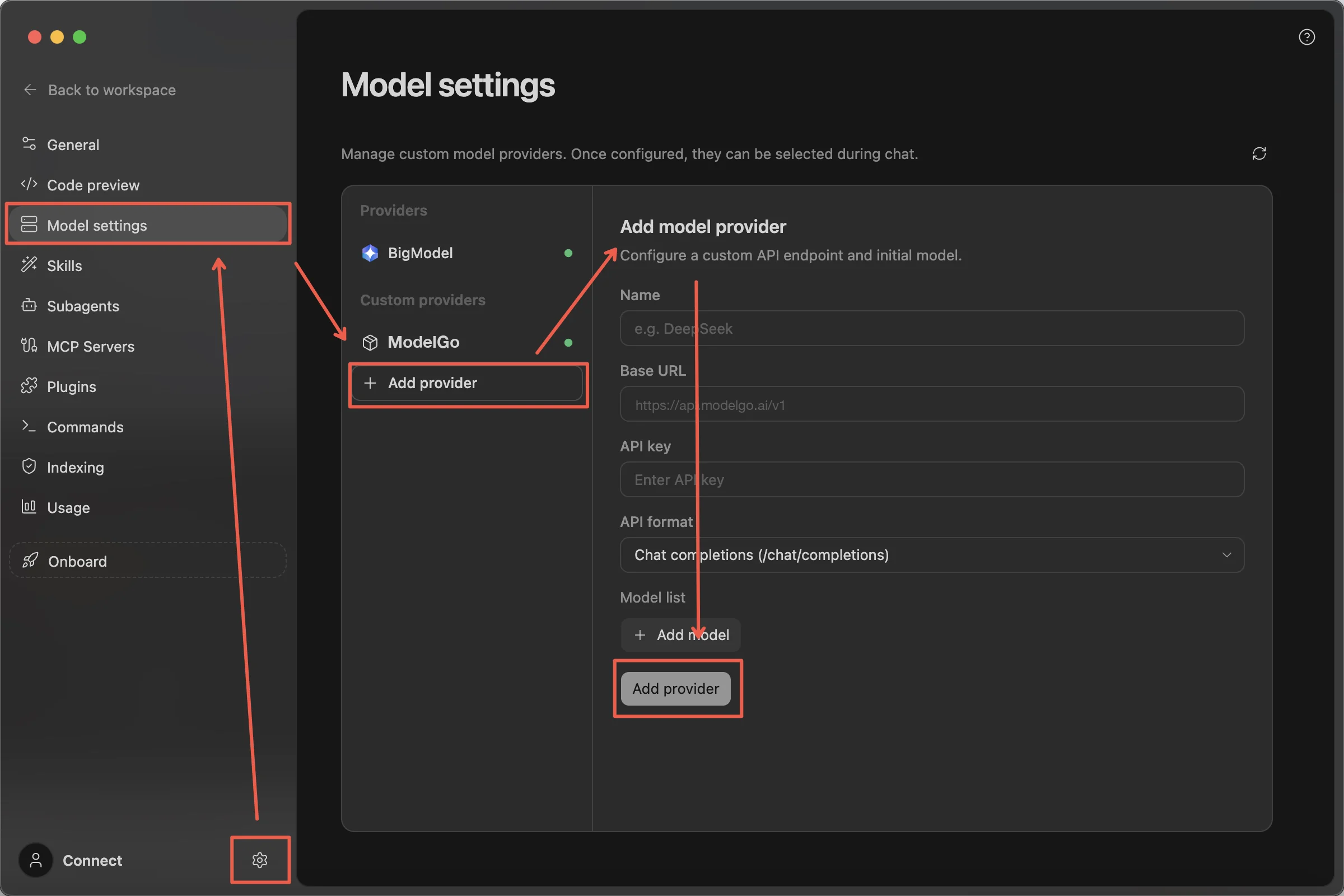
| Context window | Use the model's actual context length; if unsure, start with 200000 |
Click Add provider to save. Keep these details in mind:
3. Add a model and start a chat
Click Add model, enter a ModelGo logical model name, and save it. You can add multiple models as needed.
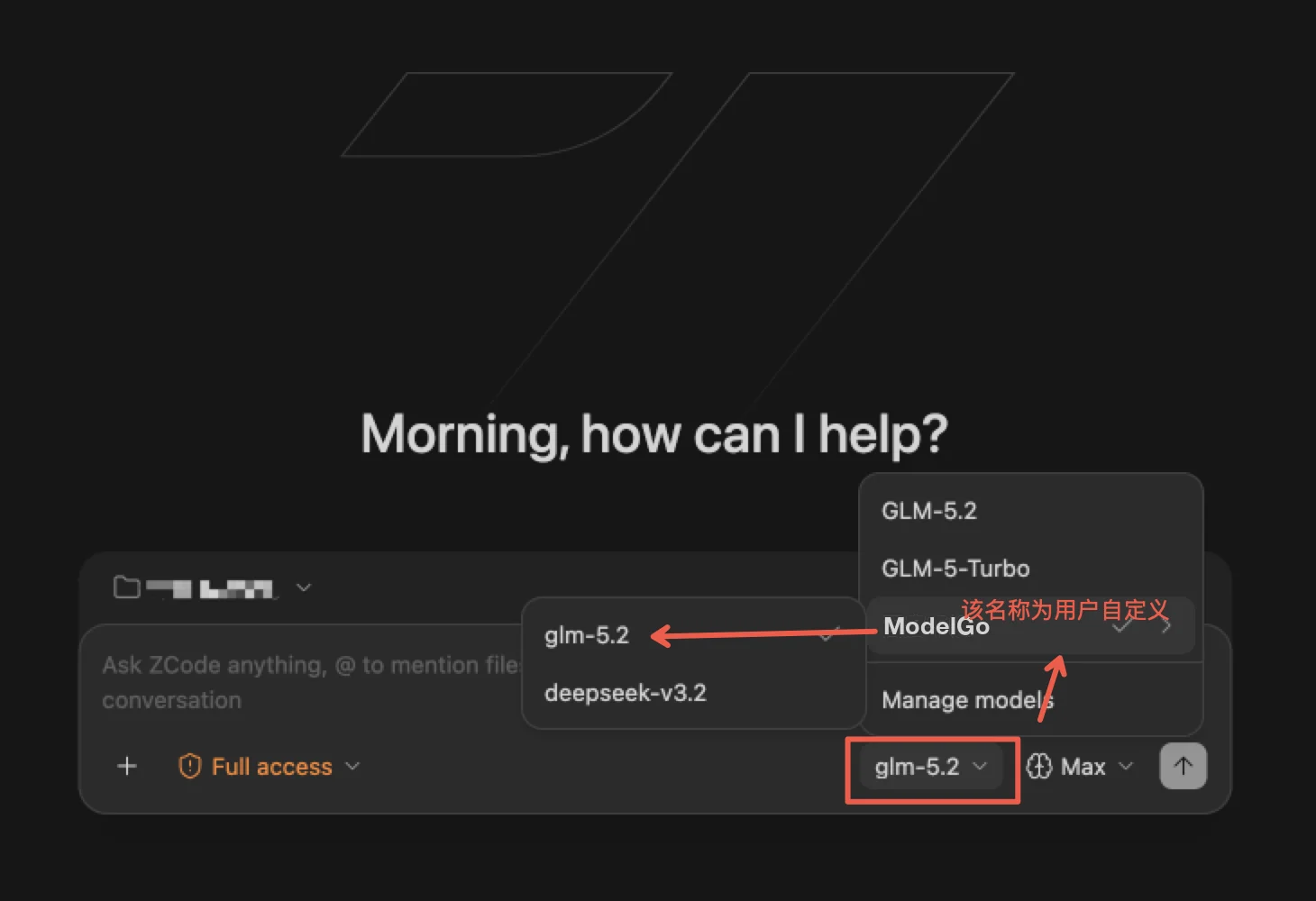
Return to the chat view, select ModelGo and the model you added, then enter a simple task such as “Describe this project in three sentences.” A successful response confirms the integration.
To verify which models the API key can call, run:
curl https://api.modelgo.ai/v1/models \
  -H "Authorization: Bearer $MODELGO_API_KEY"
Troubleshooting
401 or authentication errors
Check that the API key is complete, has no extra spaces, and is entered in the API Key field.
403 or model unavailable
Confirm that the Model list uses a logical model name from the ModelGo catalog and that the API key is allowed to call it.
404 or endpoint errors
Use https://api.modelgo.ai/v1 as the Base URL and choose Chat completions (/chat/completions). Do not paste a complete endpoint path into Base URL.
Empty model list or provider cannot be saved
Make sure at least one model has been added and the Base URL is reachable. If needed, verify the API key and endpoint with GET https://api.modelgo.ai/v1/models.
Related docs
- First API Call: create an API key, find a model, and verify ModelGo.
- Authentication: learn how to use API keys safely.
- ZCode installation docs: see the latest installation instructions.
- ZCode model connection docs: see custom provider and model settings.