
Kilo Code
Kilo Code is an AI coding assistant for VS Code and JetBrains. Use its OpenAI-compatible provider to connect Kilo Code to ModelGo models and API keys.
Before you start
- Install VS Code or a JetBrains IDE.
- Create an API key in the ModelGo Console.
- Confirm a logical model name allowed for the API key in the Model Gallery.
1. Install Kilo Code
VS Code
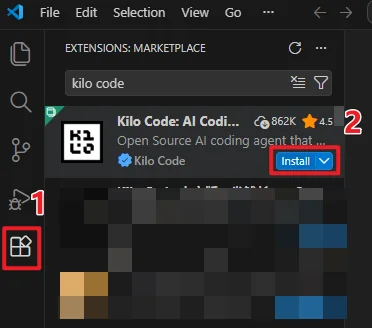
Open the VS Code Marketplace, search for Kilo Code, verify the publisher, and install the extension. Then open the Kilo Code panel from the activity bar.
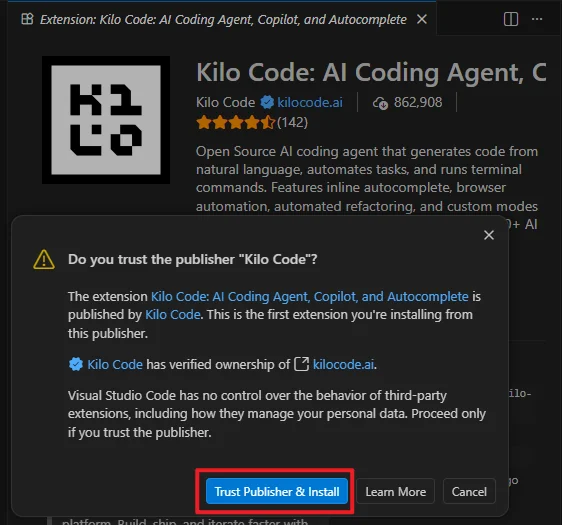
On the first install, VS Code asks you to confirm the publisher. Verify that it is Kilo Code, then click Trust Publisher & Install.
JetBrains
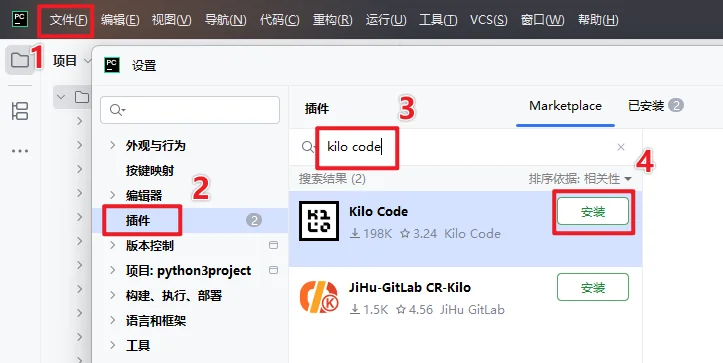
Open Settings / Preferences → Plugins, search the Marketplace for Kilo Code, and install the plugin. Restart the IDE after installation so the plugin takes effect.
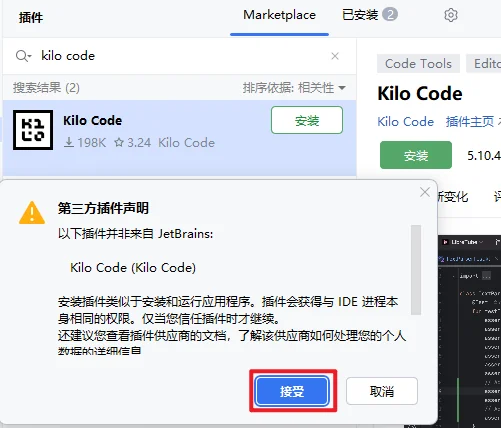
When installing a third-party plugin, JetBrains displays its plugin notice. Confirm it and click Accept to finish the installation.
2. Configure ModelGo in VS Code
Open Kilo Code settings, go to Providers, select OpenAI Compatible, and enter:
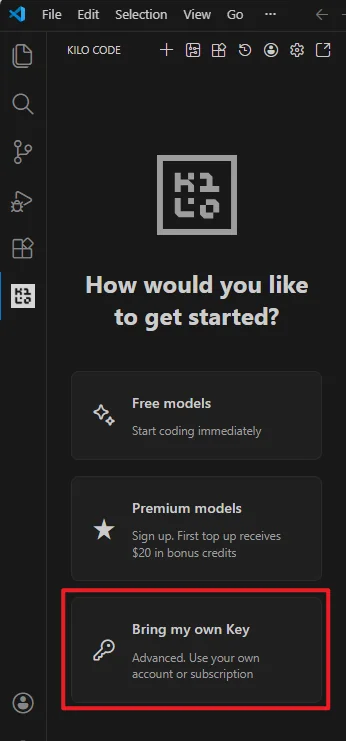
From the Kilo Code welcome screen, first choose Bring my own Key:
| Setting | Value in ModelGo |
|---|---|
| API Provider | OpenAI Compatible |
| Base URL | https://api.modelgo.ai/v1 |
| API key | A ModelGo API key created in the Console |
| Model | A ModelGo logical model name |
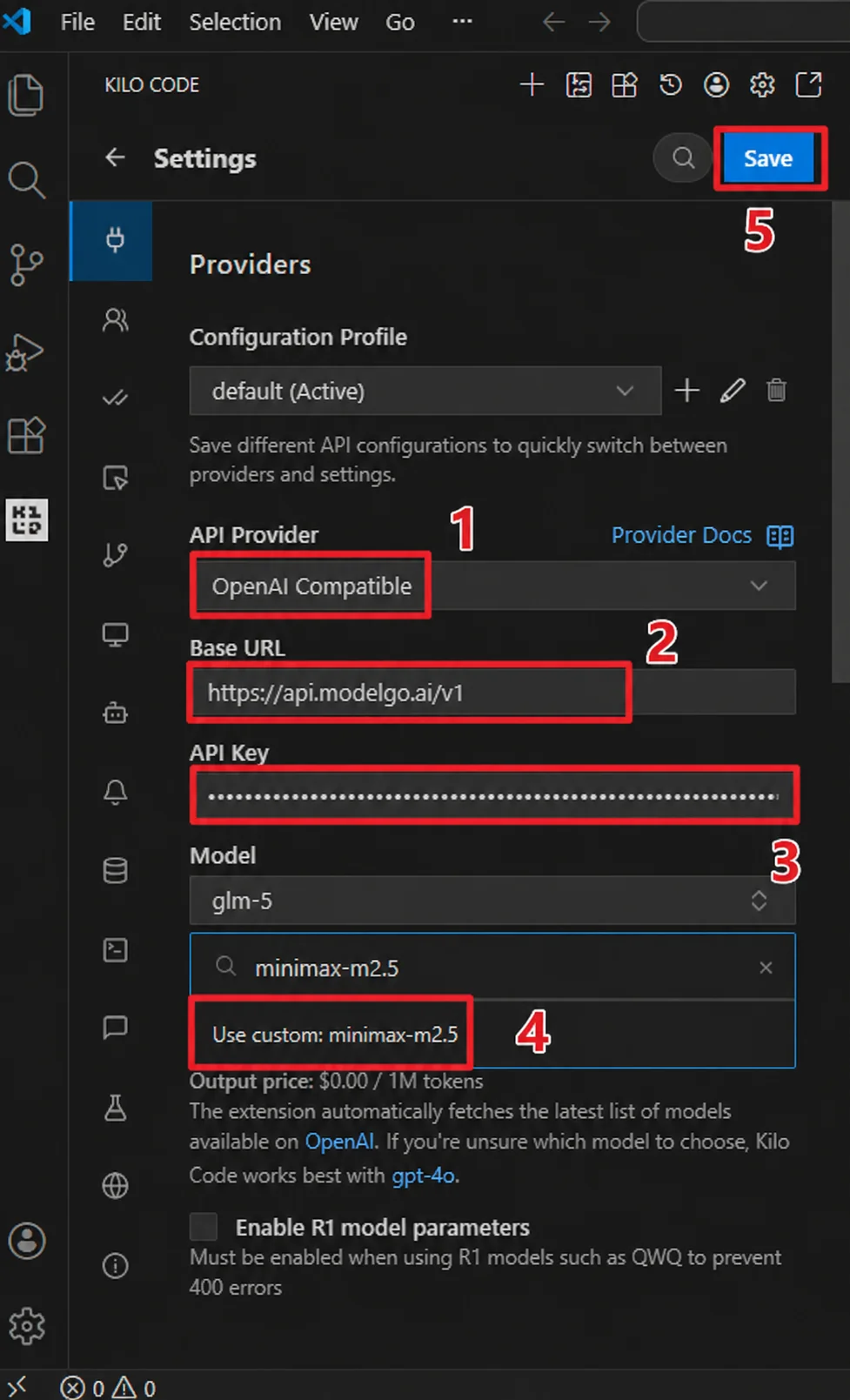
After saving, Kilo Code attempts to load models from the compatible /v1/models endpoint. If the target model is not in the picker, choose Use custom and enter the logical model name from the Model Gallery.
3. Configure ModelGo in JetBrains
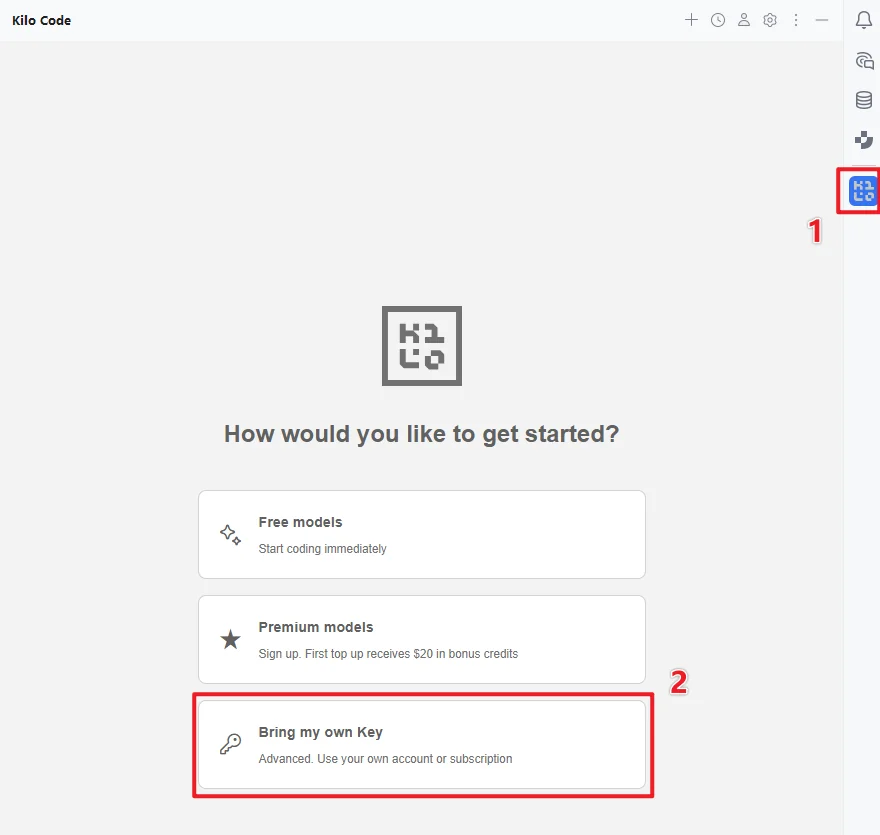
Open Kilo Code settings, click Bring my own Key, select OpenAI Compatible, and use the same values as in VS Code:
- Base URL:
https://api.modelgo.ai/v1 - API key: your ModelGo API key
- Model: a ModelGo logical model name
- Click Save.
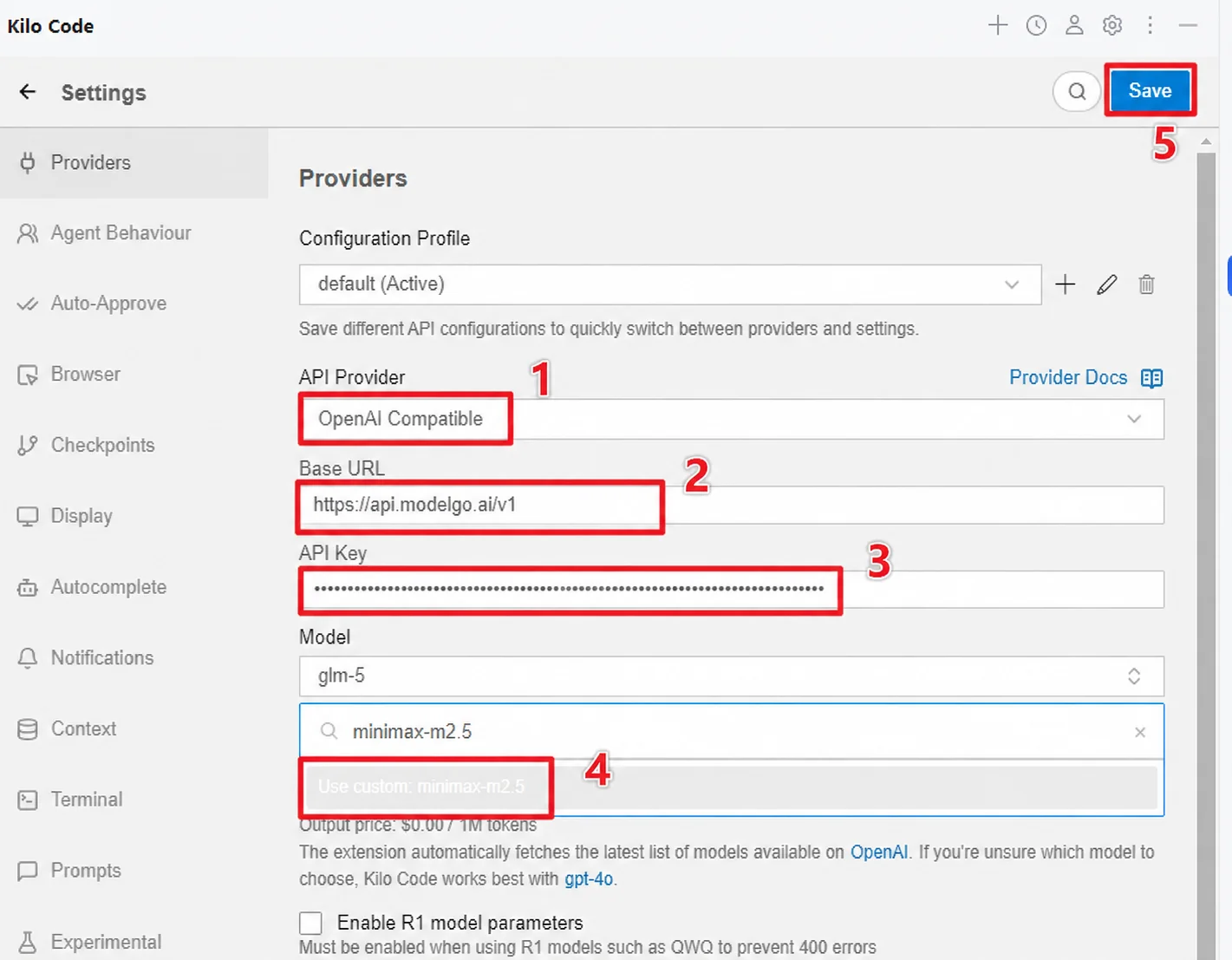
If the model picker is empty, verify that the Base URL is reachable, then choose the custom-model option and enter the logical model name manually.
4. Verify the connection
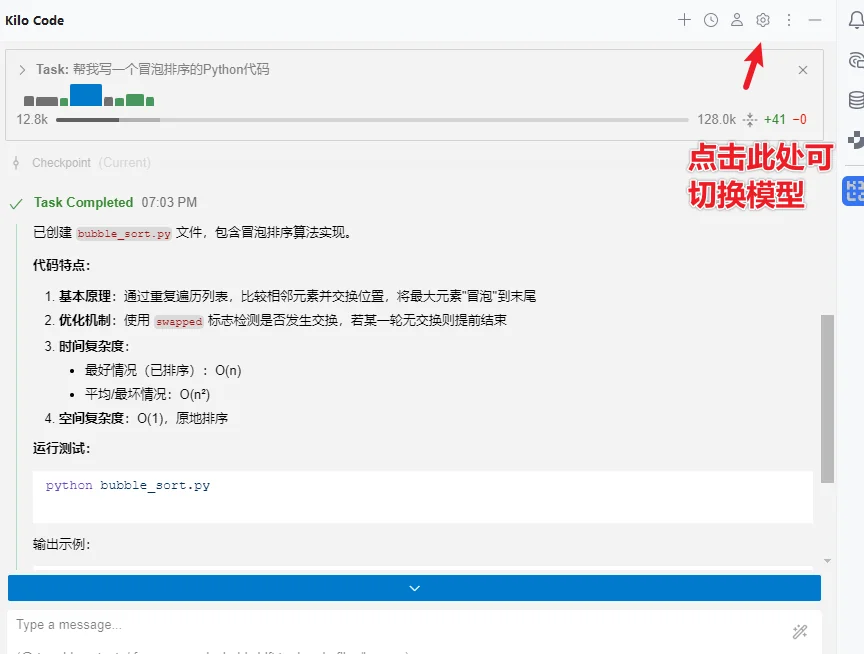
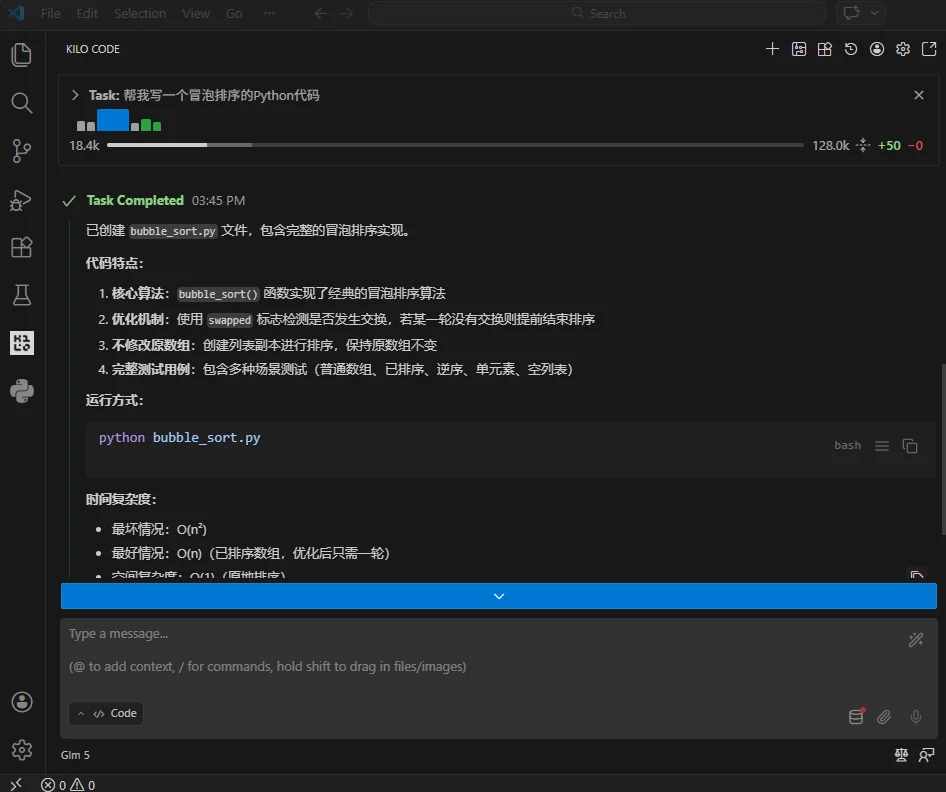
Open a local project and send a simple coding request in the Kilo Code panel, such as “Describe this project in three sentences.” A normal response confirms the connection.
To inspect the models available to the current API key:
curl https://api.modelgo.ai/v1/models \
  -H "Authorization: Bearer $MODELGO_API_KEY"
Troubleshooting
401 or authentication failed
Check that the API key is complete, contains no extra spaces, and is entered in API key, not the Base URL field.
403 or model unavailable
Make sure Model is a logical model listed in the ModelGo Model Gallery and allowed by the policy attached to the API key. Do not use an upstream provider's raw model ID unless the gallery explicitly lists it.
404 or endpoint not found
Set Base URL to https://api.modelgo.ai/v1, not a full /chat/completions URL. Kilo Code appends the endpoint path when it sends the request.
The model picker is empty
Use GET https://api.modelgo.ai/v1/models to check the API key and endpoint. If the endpoint works, choose Use custom and enter the logical model name manually.
Related docs
- First call: create an API key, find a model, and verify a ModelGo request.
- Authentication: learn how to use and protect ModelGo API keys.
- Kilo Code documentation: see the latest extension installation and provider setup guidance.