
Codex
Codex is OpenAI's command-line AI coding assistant. With a custom model_provider, Codex CLI can send Responses API requests to ModelGo.
Before you start
- Install Node.js 18 or later.
- Create an API key in the ModelGo Console.
- Confirm a logical model name allowed for the API key in the Model Catalog.
1. Install Codex
Run this command in macOS, Linux, or Windows:
npm install -g @openai/codexVerify the installation:
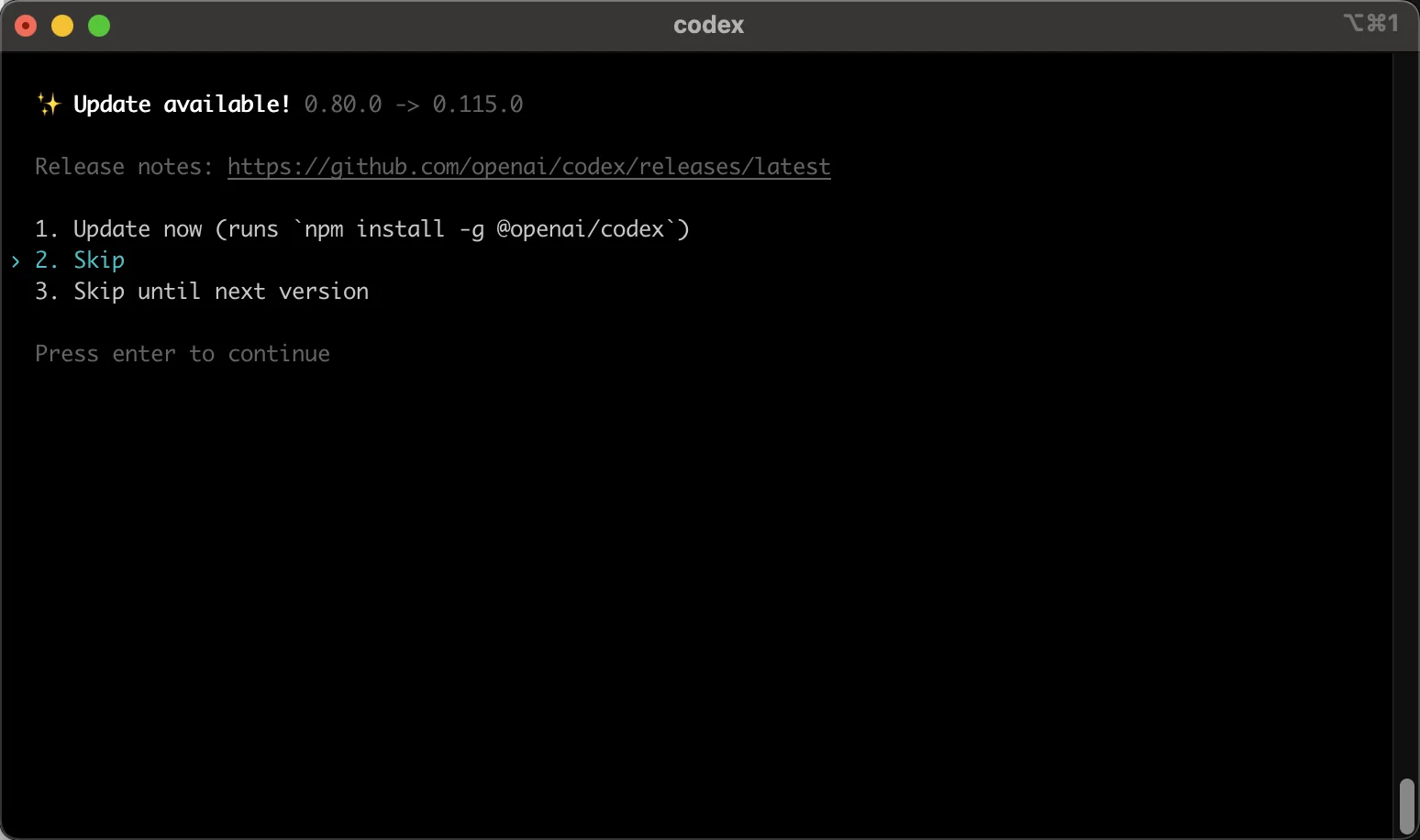
codex --versionIf Codex shows an upgrade prompt on first launch, choose Skip and finish the ModelGo setup first.
2. Configure ModelGo
Codex reads its user-level model and provider settings from ~/.codex/config.toml. Create the file first:
macOS / Linux
mkdir -p ~/.codex
touch ~/.codex/config.toml
${EDITOR:-vi} ~/.codex/config.toml
Windows PowerShell
New-Item -ItemType Directory -Force "$env:USERPROFILE\.codex"
notepad "$env:USERPROFILE\.codex\config.toml"
Paste the following into config.toml, replacing YOUR_MODELGO_MODEL with a logical model name allowed for the current API key:
model_provider = "modelgo"
model = "YOUR_MODELGO_MODEL"

[model_providers.modelgo]
name = "ModelGo"
base_url = "https://api.modelgo.ai/v1"
env_key = "MODELGO_API_KEY"
wire_api = "responses"
The base_url is ModelGo's OpenAI-compatible API root. Codex appends /v1/responses when it sends a request.
3. Set the API key
Store your ModelGo API key in the MODELGO_API_KEY environment variable. Do not put the real key directly in config.toml.
macOS / Linux (zsh)
echo 'export MODELGO_API_KEY="YOUR_MODELGO_API_KEY"' >> ~/.zshrc
source ~/.zshrc
For Bash, replace ~/.zshrc with ~/.bashrc or ~/.bash_profile.
Windows PowerShell
[Environment]::SetEnvironmentVariable("MODELGO_API_KEY", "YOUR_MODELGO_API_KEY", "User")
$env:MODELGO_API_KEY = [Environment]::GetEnvironmentVariable("MODELGO_API_KEY", "User")
Check that the variable is set without printing the key:
test -n "$MODELGO_API_KEY" && echo "MODELGO_API_KEY is set"4. Start and verify
Change to a local project directory and run:
cd /path/to/your/project
codex
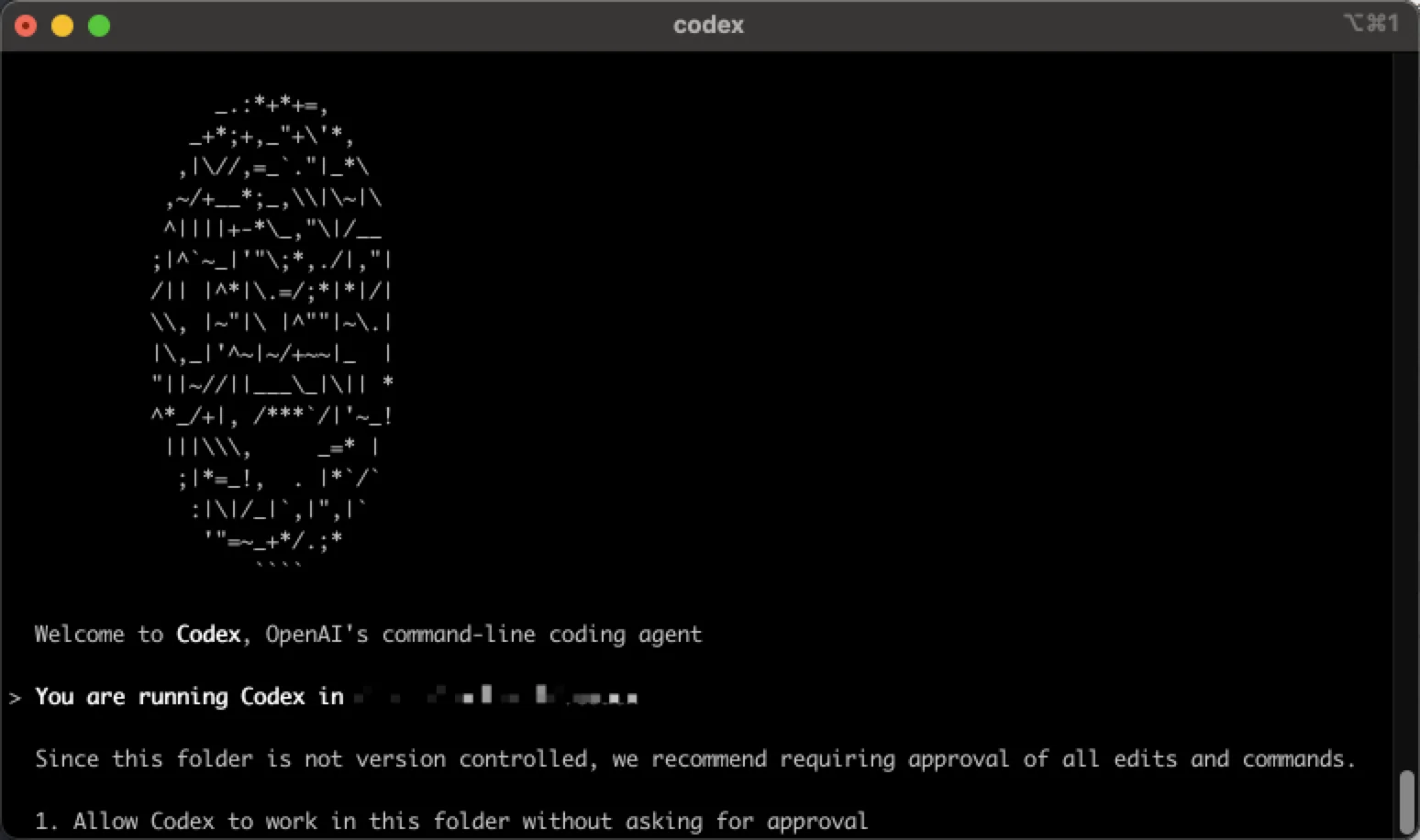
When Codex asks for permission to work in the project, trust the directory as appropriate. After the welcome screen appears, send a simple coding request such as “Describe this project in three sentences.”
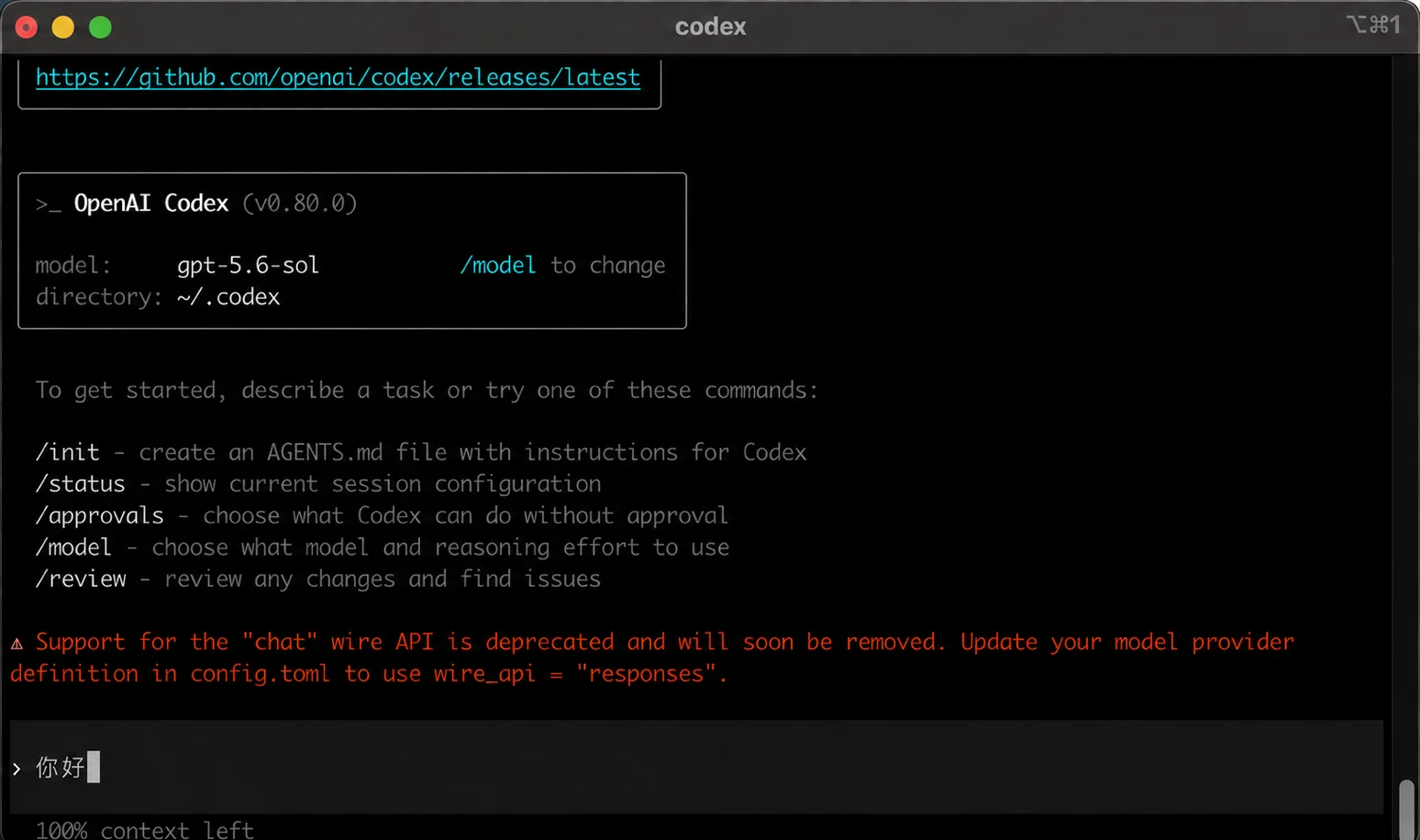
A normal model response confirms that ModelGo is connected.
To verify which models the API key can call:
curl https://api.modelgo.ai/v1/models \
  -H "Authorization: Bearer $MODELGO_API_KEY"
Troubleshooting
Provider not found at startup
Make sure the file is the user-level ~/.codex/config.toml, and that model_provider = "modelgo" matches [model_providers.modelgo].
401 or authentication failed
Check that MODELGO_API_KEY is set in the current terminal and contains no extra spaces or newlines.
403 or model unavailable
Make sure model is a logical ModelGo model name allowed by the policy attached to the API key.
404 or incorrect endpoint path
Set base_url to https://api.modelgo.ai/v1. Do not include /responses or /v1/responses; Codex appends the path.
Chat wire API deprecation warning
Add wire_api = "responses" under [model_providers.modelgo], then upgrade Codex CLI:
npm install -g @openai/codex@latest400 invalid_encrypted_content
This usually means the conversation contains encrypted context created by the original upstream account, but the current request was handled by a different upstream account.
Check whether the API key or Base URL changed, or whether a proxy or account pool switched upstream accounts. If a switch occurred, start a new conversation instead of continuing or resuming the existing one.
Related docs
- First call: create an API key, find a model, and verify a ModelGo request.
- Authentication: learn how to use ModelGo API keys.
- Codex configuration reference: see current
config.tomlfields.