
Cursor
Cursor is an AI coding editor. With a custom OpenAI Base URL, Cursor can call ModelGo logical models.
Before you start
- Install Cursor.
- Create or copy an API key in the ModelGo console.
- Confirm a logical model name available to your API key in the model catalog.
1. Install Cursor
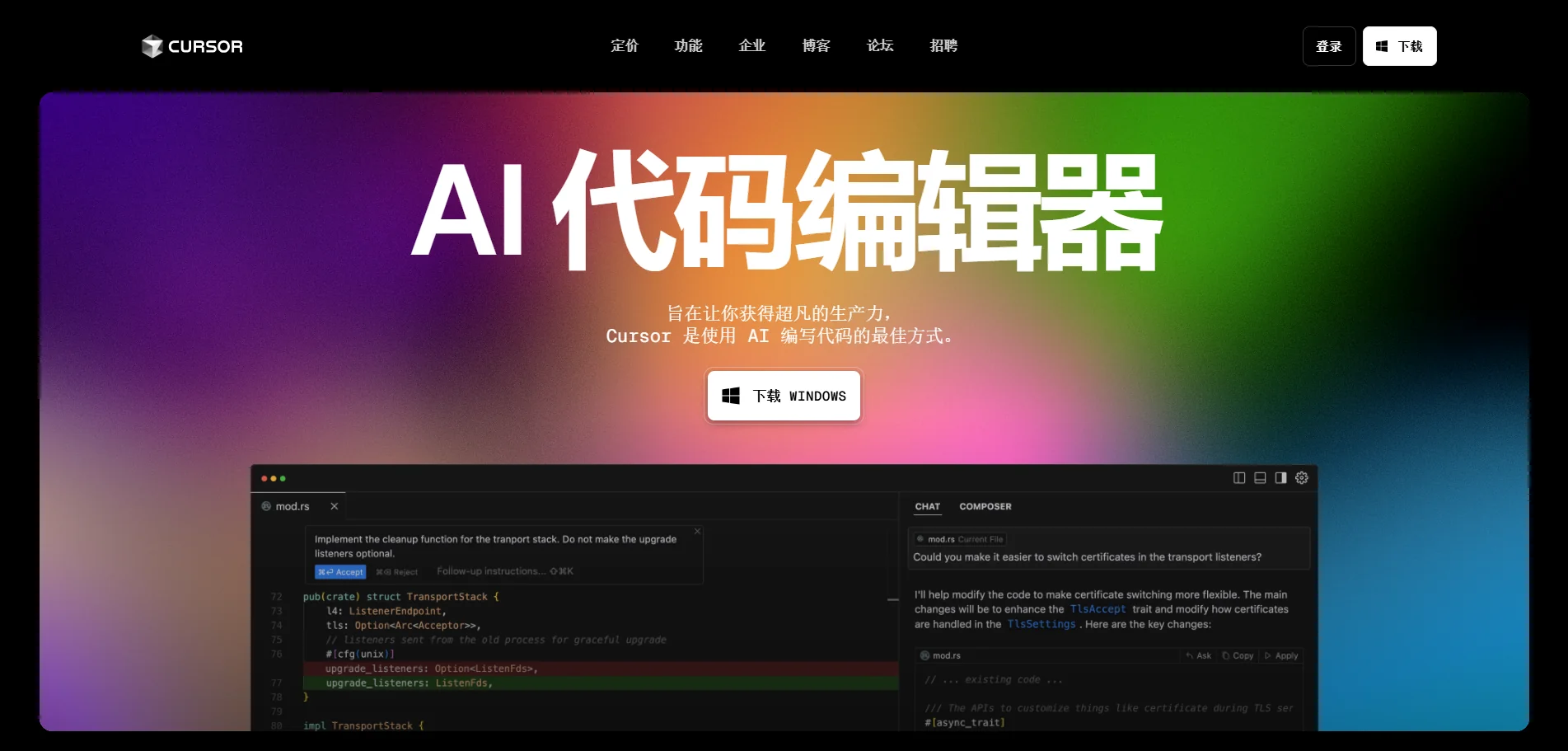
Visit the Cursor website and download the build for your operating system.
2. Open Cursor model settings
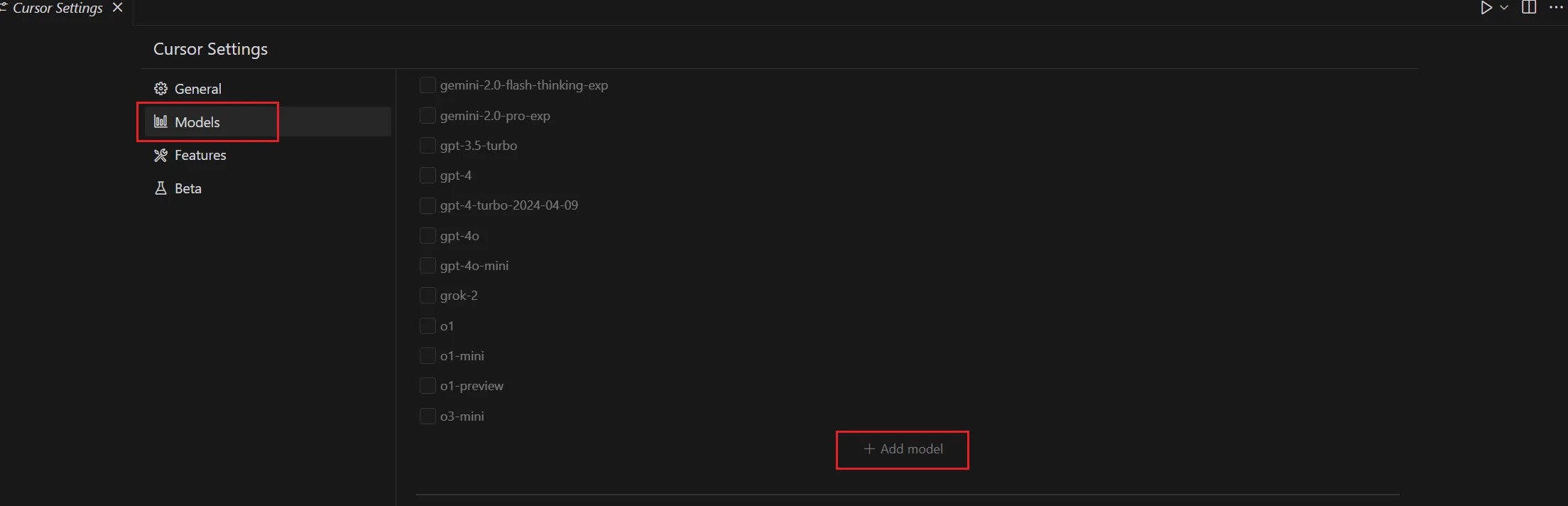
Open Cursor settings and go to Models.

3. Add and enable a model
Click Add model, enter a logical model name from the model catalog, and save it.
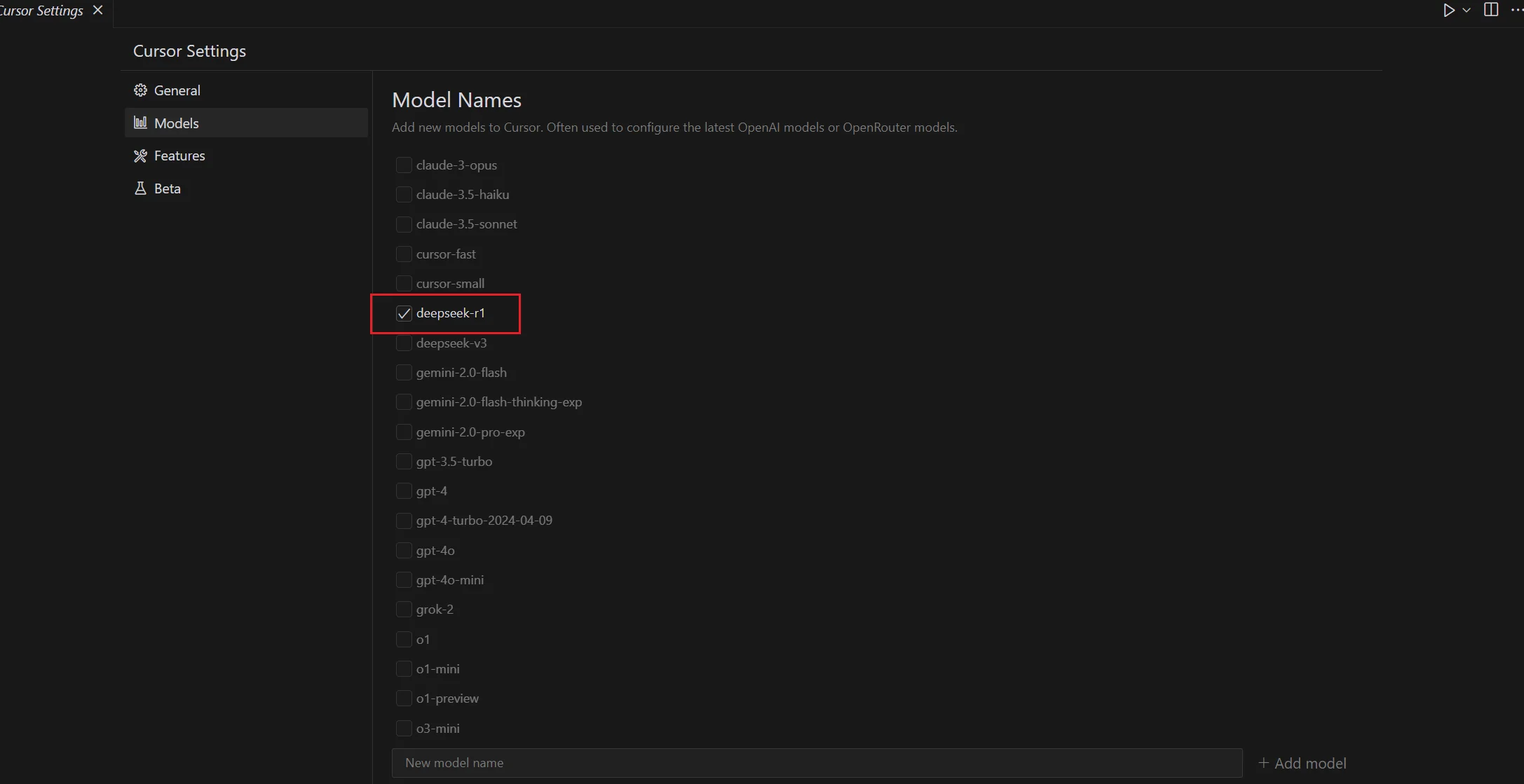
In Model Names, keep the models you want to use and disable the rest.
4. Configure the ModelGo endpoint
In Settings → Models → API Keys, configure the OpenAI-compatible endpoint:
| Setting | ModelGo value |
|---|---|
| OpenAI API Key | Your ModelGo API key |
| Override OpenAI Base URL | https://api.modelgo.ai/v1 |
| Model Names | A logical model name from the ModelGo catalog |
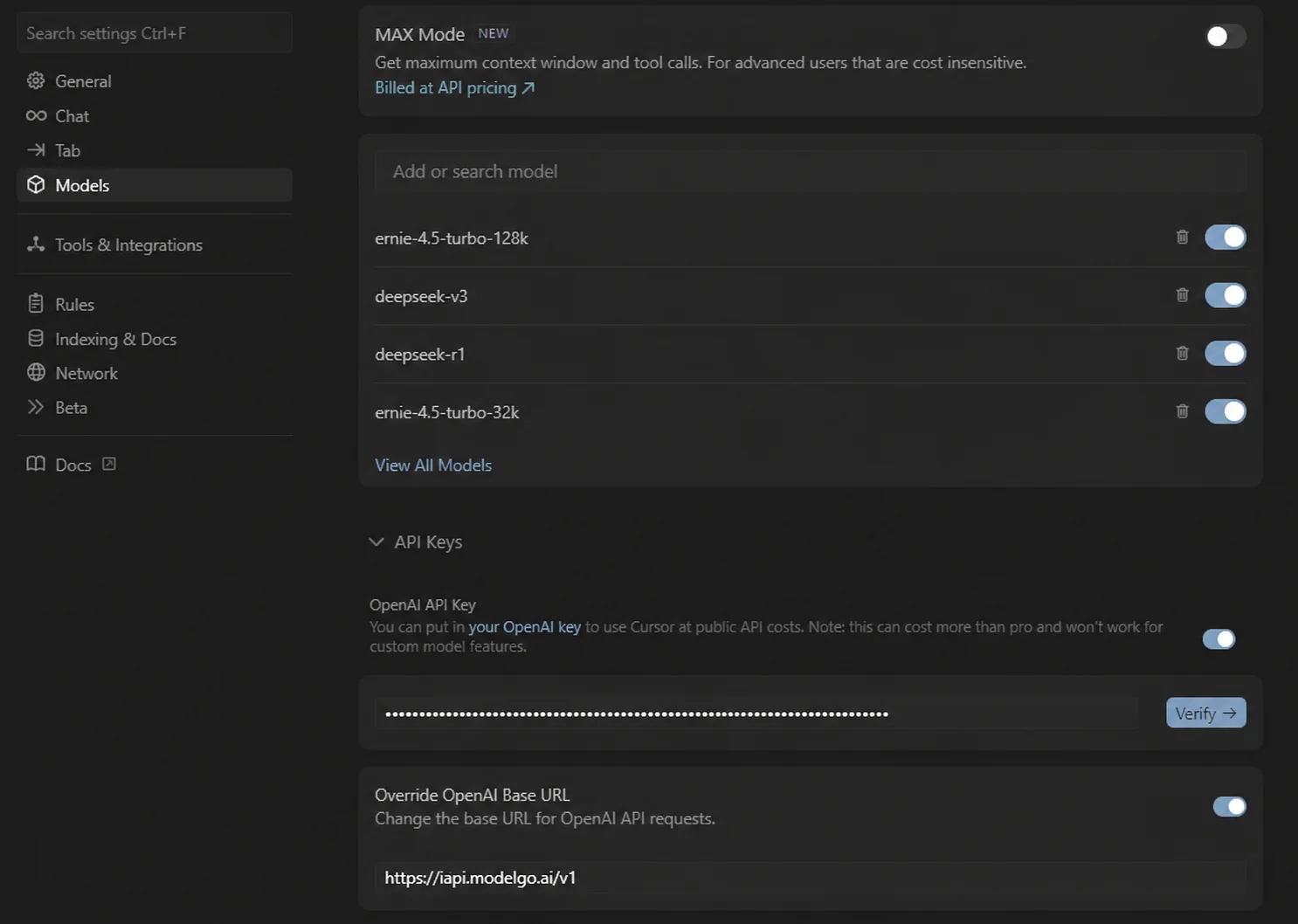
If your Cursor release uses the alternate settings layout, enter the same ModelGo values there.
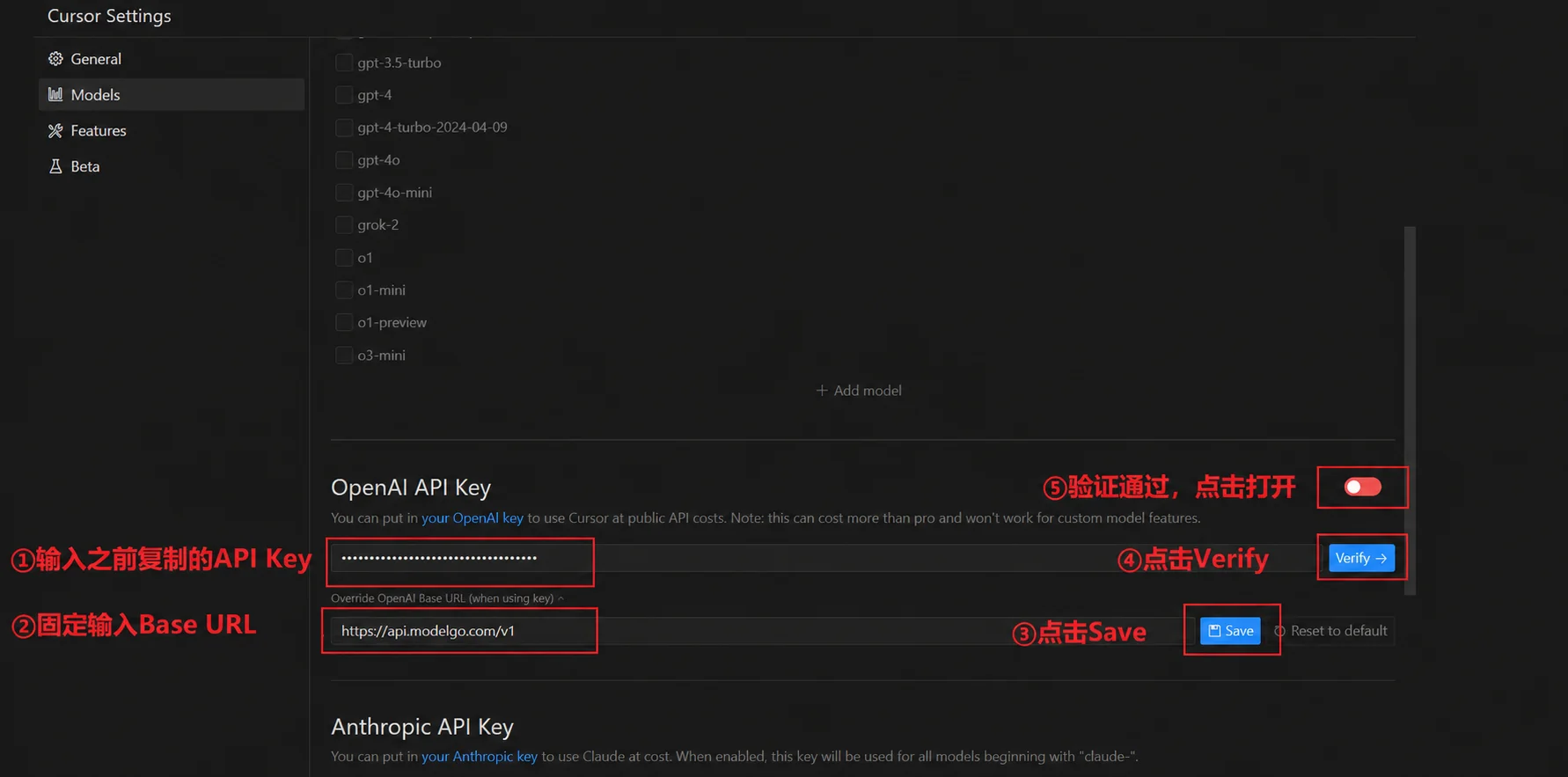
Click Verify or Save. Cursor may use slightly different labels in different releases, but the API key, Base URL, and model name have the same meaning.
5. Test the connection
Return to the Cursor chat, select the model you added, and send a simple message. A normal response confirms the integration.
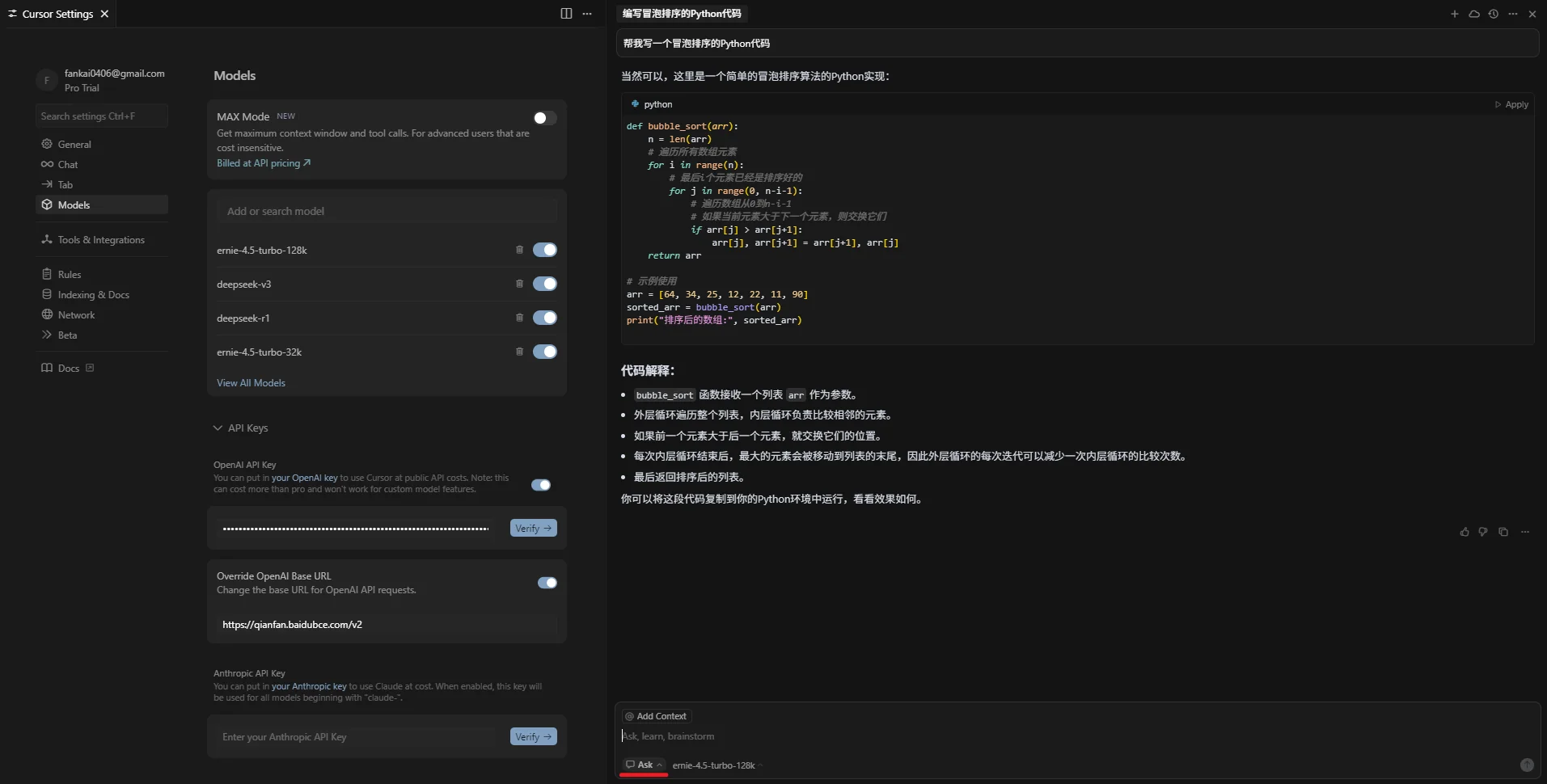
You can also list the models available to the API key:
curl https://api.modelgo.ai/v1/models \
  -H "Authorization: Bearer $MODELGO_API_KEY"
Troubleshooting
401 or authentication errors
Make sure the API key is complete, has no extra spaces, and is entered in OpenAI API Key.
404 or endpoint errors
Use https://api.modelgo.ai/v1 as the Base URL. Do not append /chat/completions to it.
Verify fails or the model is unavailable
Check that the model name is a logical ModelGo model and that the model is enabled for the API key.
The chat returns no content
Run GET https://api.modelgo.ai/v1/models to verify connectivity and the key, then confirm the target model is enabled in Model Names.
Related docs
- First API Call: create an API key, find a model, and verify ModelGo.
- Authentication: use API keys safely.
- Cursor documentation: see Cursor settings, models, and custom API configuration.