
Cline
Cline is an AI coding assistant for VS Code. Select the OpenAI Compatible provider to call models through ModelGo's OpenAI-compatible API.
Before you start
- Install VS Code.
- Create an API key in the ModelGo Console.
- Confirm a logical model name allowed for the API key in the Model Catalog.
1. Install Cline
Open the VS Code Extensions marketplace, search for Cline, and install the extension.

2. Configure ModelGo
After installation, click the Cline icon in the VS Code activity bar and open API Configuration.
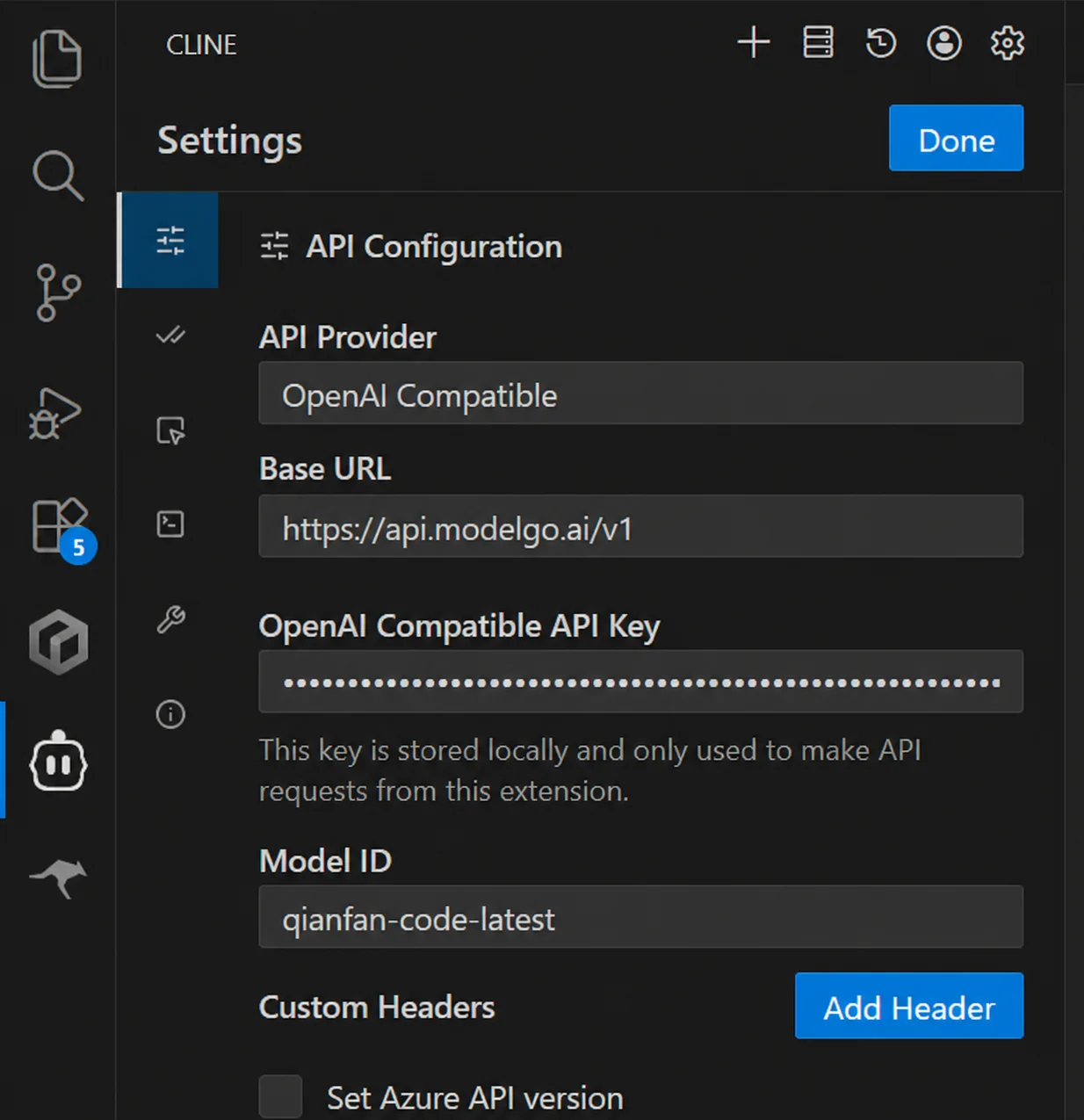
Fill in the following values:
| Setting | Value in ModelGo |
|---|---|
| API Provider | OpenAI Compatible |
| Base URL | https://api.modelgo.ai/v1 |
| API Key | Your ModelGo API key |
| Model ID | A ModelGo logical model name |
Click Done to save.
To verify which models the API key can call:
curl https://api.modelgo.ai/v1/models \
  -H "Authorization: Bearer $MODELGO_API_KEY"
3. Start using Cline
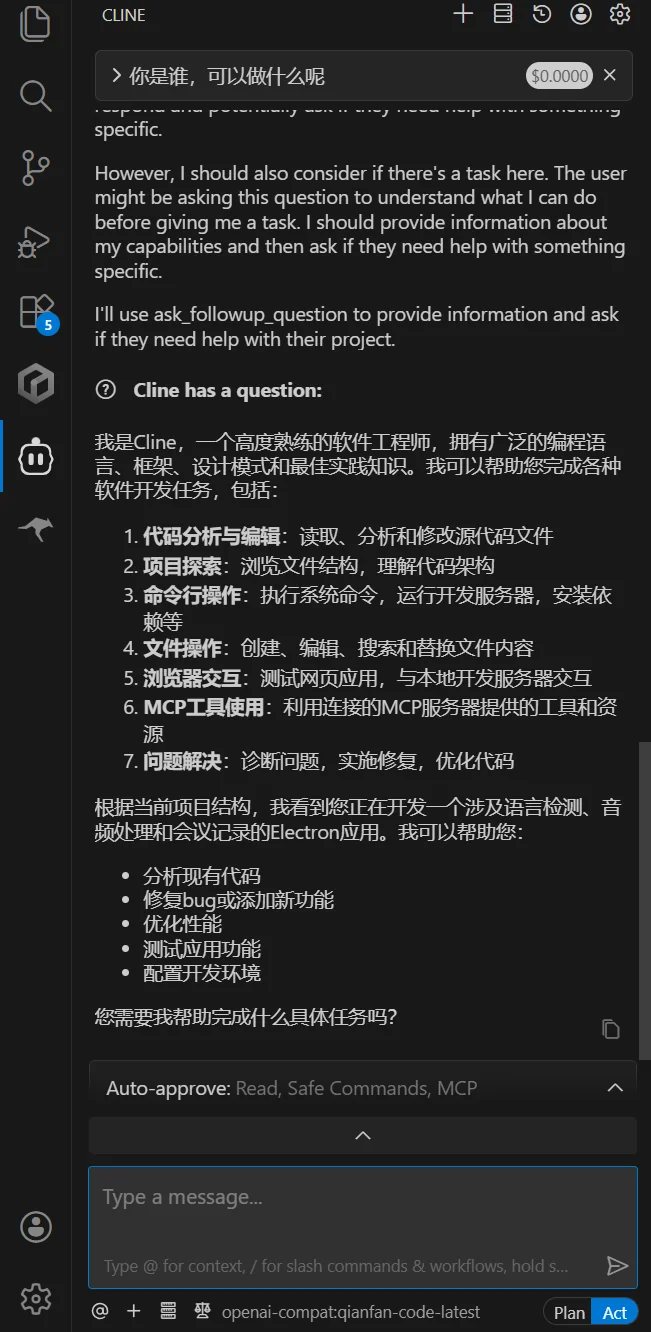
Open the Cline panel and send a simple coding request, such as “Describe this project in three sentences.” A normal response confirms the connection.
Troubleshooting
401 or authentication failed
Check that the API key is complete, contains no extra spaces, and is entered in the API Key field.
403 or model unavailable
Make sure Model ID is a logical ModelGo model name allowed by the policy attached to the API key.
404 or endpoint not found
Set Base URL to https://api.modelgo.ai/v1; do not paste a full /chat/completions URL.
The model list is empty
Request GET https://api.modelgo.ai/v1/models to verify the endpoint. If Cline does not show the model in its list, enter Model ID manually.
Related docs
- First call: create an API key, find a model, and verify a ModelGo request.
- Authentication: learn how to use ModelGo API keys.
- Cline OpenAI Compatible docs: see Cline's official provider configuration guidance.