
Connect Magpie to ModelGo: Setup & Troubleshooting
Magpie manages model selection for multiple Agents. Add ModelGo as a custom provider, then assign its models to your Agents.
1. Prepare your API key and model
Install Magpie and your Agent. Create an API key in the ModelGo console, and check your balance, budget, and model permissions.
Use a ModelGo logical model ID from the model catalog or query models available to your key:
export MODELGO_API_KEY="mgk_your_API_key"
curl https://api.modelgo.ai/v1/models \
  -H "Authorization: Bearer $MODELGO_API_KEY"
Use a value from data[].id. This environment variable is for the terminal check; enter the key separately in Magpie.
2. Add ModelGo as a custom provider
Open Providers → Add provider → Custom.
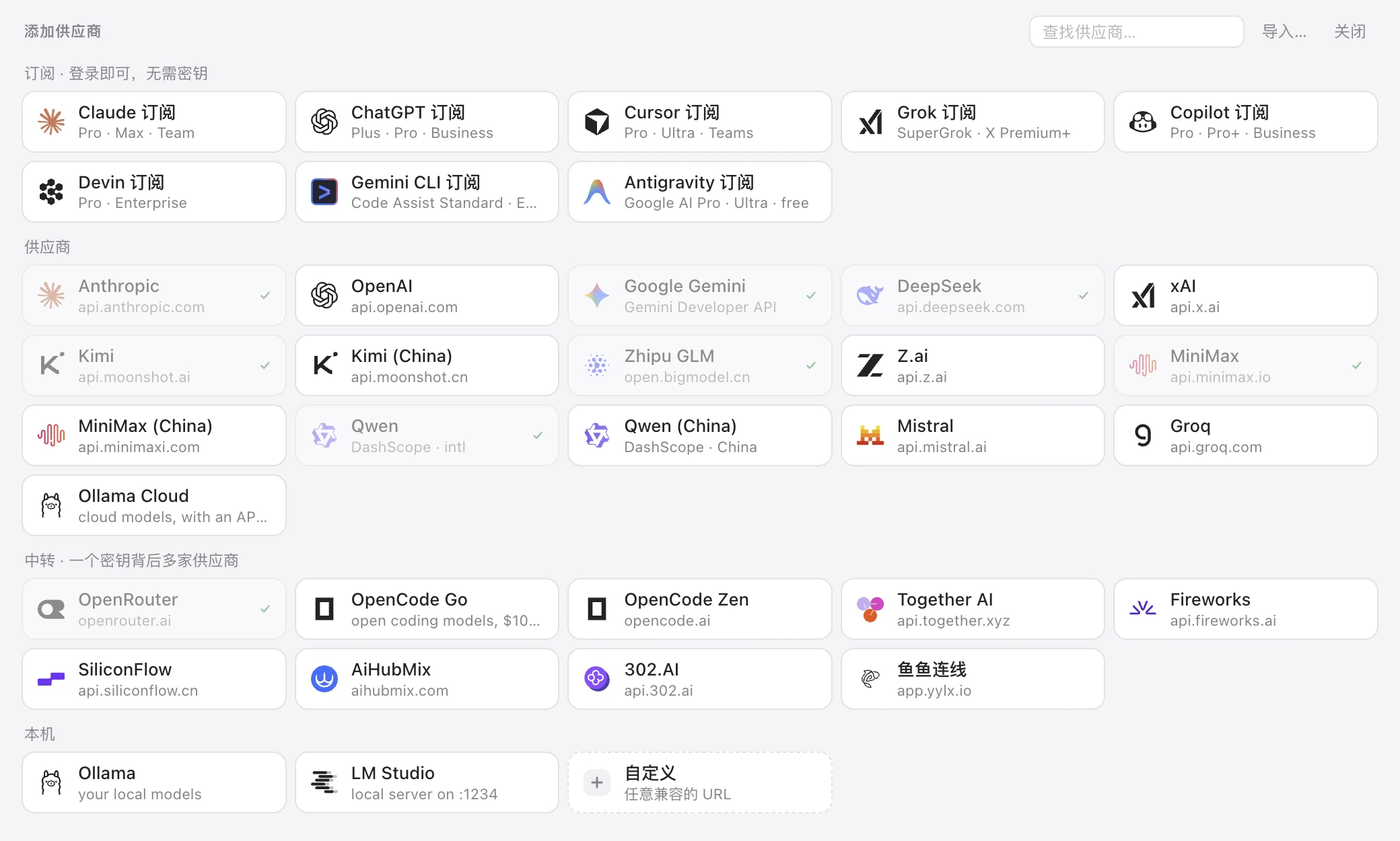
*Official Chinese UI example. Choose Custom to add ModelGo.*
| Setting | Value |
|---|---|
| Name | ModelGo |
| OpenAI-compatible URL | https://api.modelgo.ai/v1 |
| Anthropic-compatible URL | https://api.modelgo.ai |
| API key | Your ModelGo API key |
Save. Do not append /chat/completions or /messages. The selected model must support the Agent's API entry point; see model protocols and parameters.
3. Select a model for your Agent
Choose which models to expose under the ModelGo provider. Open Agents, then select a ModelGo model in the target Agent's model picker.
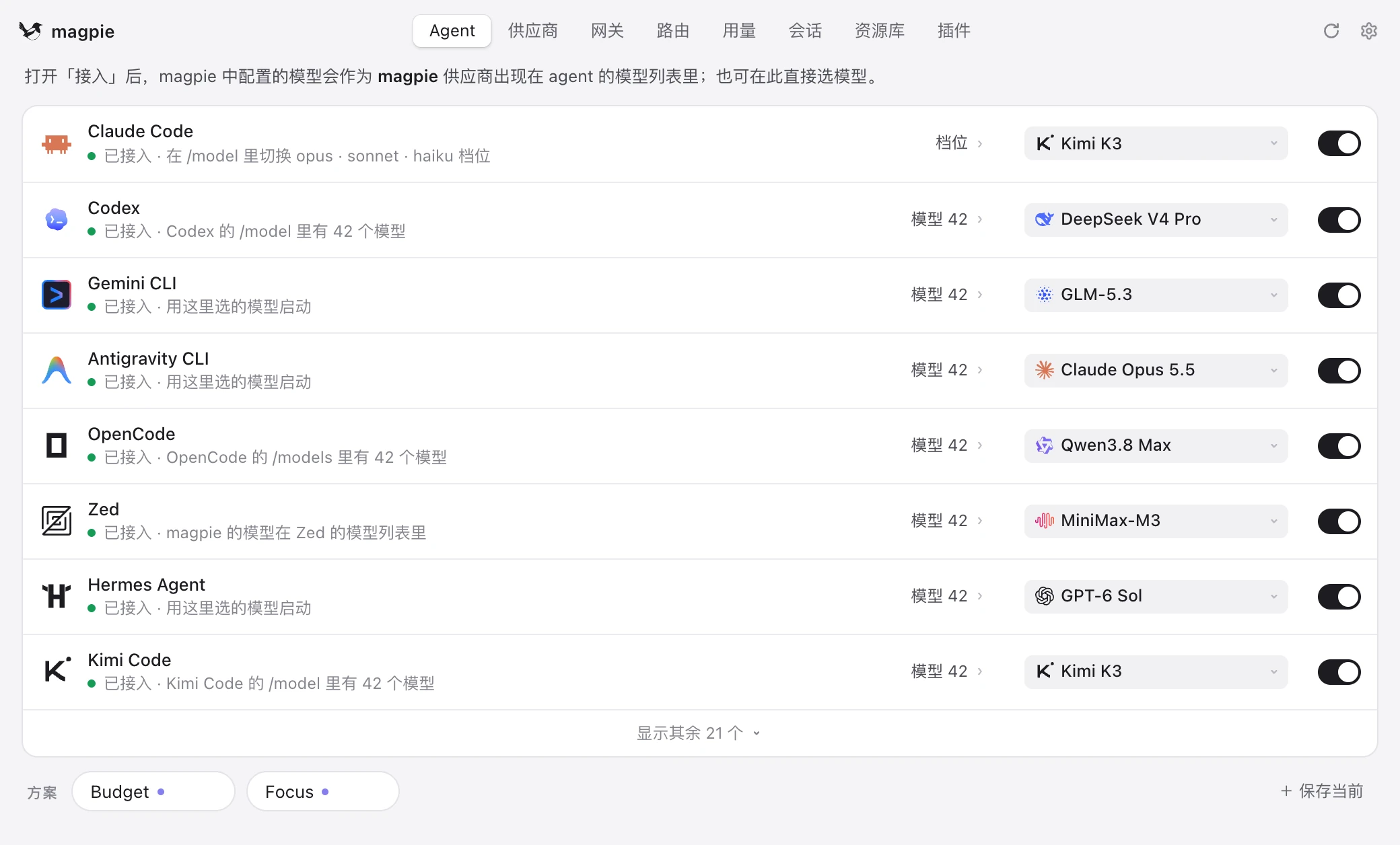
*Official Chinese UI example showing picker locations; choose a model under your ModelGo provider.*
Start a new Agent session. For Codex, restart the application as well. Magpie writes the gateway and model settings into the Agent's configuration. Keep Magpie running while using its models; closing the window can leave it running in the menu bar or tray.
4. Verify
Send a short message in the new session. Check Magpie's Routing page to confirm that the request used your ModelGo model, or inspect the ModelGo call logs. Verify tools, files, and image understanding separately with small tasks.
Troubleshooting
| Issue | Action |
|---|---|
401 | Check the key in Magpie for validity, missing characters, or whitespace. |
402 | Check balance and workspace, member, or key budgets. |
403 | Check the error reason, model permissions, and account status. |
404 | Check the base URL and avoid duplicate /v1 or full request paths. |
model_protocol_not_offered | Choose a model supporting the requested API entry point. |
429 | Follow Retry-After or retry with backoff. |
| Old model still used | Start a new session; restart Codex too. |
| No routing record | Keep Magpie running and check whether a proxy intercepts 127.0.0.1:3425. |
Keep X-Request-ID for troubleshooting. See errors and rate limits.