
Connect DS Bot to ModelGo: Setup & Troubleshooting
DS Bot is a community-built Bot app based on DeepSeek Harness (DSH), with persistent memory and multi-Bot group chats. A custom API provider connects it to ModelGo's OpenAI-compatible API.
Before you start, create an API key in the ModelGo Console and choose a text model that your key can call and that supports tool calling from the Model Catalog.
1. Install
Download the desktop installer for your operating system from DS Bot Releases:
| Operating system | Package |
|---|---|
| Windows x64 | DS-Bot-<version>-win-x64.exe |
| macOS Apple silicon | DS-Bot-<version>-mac-arm64.zip |
| macOS Intel | DS-Bot-<version>-mac-x64.zip |
| Linux x64 | .AppImage, or .deb for Debian / Ubuntu |
The desktop app includes DSH. You do not need to install Node.js or DSH separately. Install the app, open it, and complete the initial setup.
2. Configure ModelGo
Open Settings → Models → Add a provider, select Custom API, and enter:
| Setting | Value for ModelGo |
|---|---|
| Provider ID | modelgo |
| Name | ModelGo (optional) |
| Endpoint | https://api.modelgo.ai/v1 |
| Protocol | OpenAI Chat Completions (openai-completions) |
| API key | Your ModelGo API key |
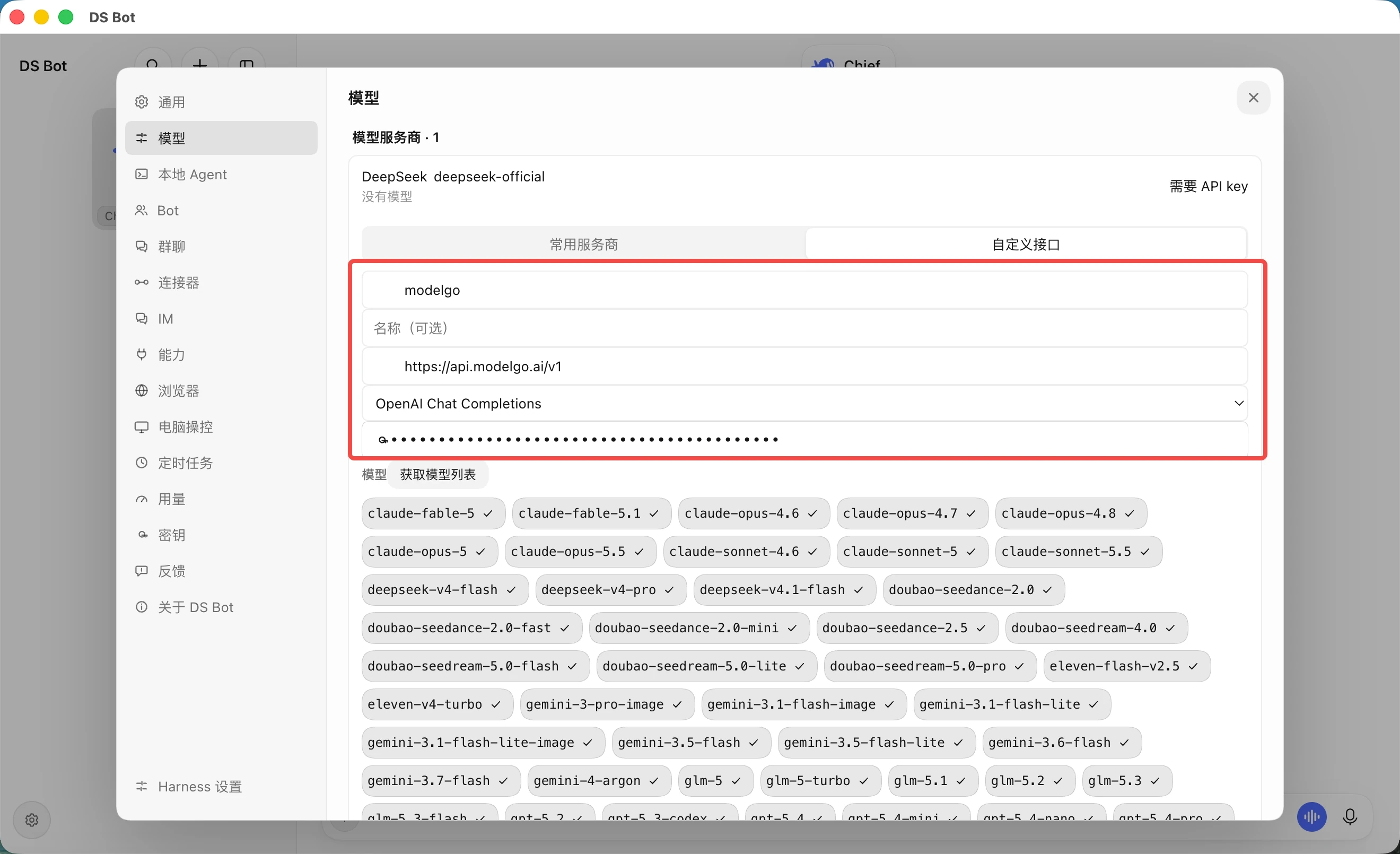
Click Fetch models and select the models to use. Alternatively, enter their complete ModelGo logical model names in Model ids, separated by commas. Select or enter at least one model, then click Add to save.
Keep /v1 in the endpoint; do not append /chat/completions. Paste only the key, without a Bearer prefix, quotes, or MODELGO_API_KEY=. Enter each logical model name exactly as ModelGo provides it.
If you use DS Bot as a DSH plugin, enter the same endpoint, protocol, key, and model ID in DSH's Settings → Models → Add custom provider, then save. See the DeepSeek Harness setup guide.
3. Verify
Return to a Bot chat, open the model menu, and select the ModelGo model you added. You can also select a model on the Bot's details page. Send a simple message, such as “Hello, describe what you can help me do in one sentence.” After receiving a response, try a simple tool task to check that the model can perform Bot work.
To check your key and available models first, run this in a macOS / Linux terminal:
export MODELGO_API_KEY="mgk_your_api_key"
curl https://api.modelgo.ai/v1/models \
  -H "Authorization: Bearer $MODELGO_API_KEY"
A successful model-list request checks authentication and model discovery. Verify the full connection with a Bot conversation as well.
Troubleshooting
- 401: check that the key is complete and valid, without spaces, quotes, or a
Bearerprefix. - 403 / model unavailable: use a logical model name your API key is allowed to call.
- 404: set the endpoint to
https://api.modelgo.ai/v1and chooseOpenAI Chat Completions. - Add is disabled: select at least one fetched model or enter a model ID manually.
- Bot still uses its previous model: switch to the ModelGo model in that Bot's model menu or details page.