
Connect OpenMausBot to ModelGo: Setup & Troubleshooting
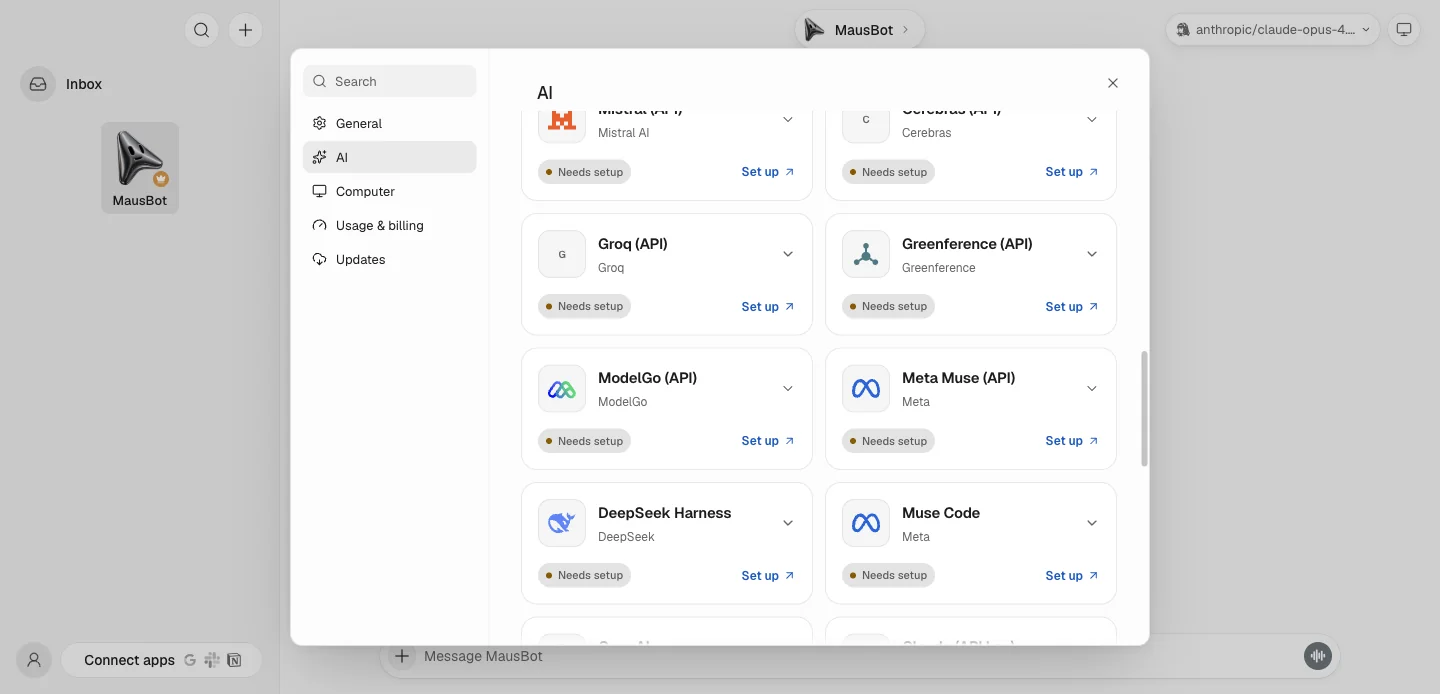
OpenMausBot 0.1.152 and later include ModelGo as a built-in AI provider. You only need to save a ModelGo API key and choose one of the models available to that key.
1. Install or update OpenMausBot
Download the latest desktop build from the OpenMausBot releases page. You can also run the release that introduced the built-in integration with:
npx openmausbot@0.1.152If ModelGo does not appear in OpenMausBot, check that the installed version is 0.1.152 or later.
2. Create a ModelGo API key
- Sign in to the ModelGo Console.
- Open API Keys and create a key.
- Copy the full key when it is shown and store it securely.
Before testing, confirm that the account has available balance and that the key can call the models you want to use.
3. Add the key in OpenMausBot
In the desktop app, select the gear icon in the sidebar and open:
Settings → API keys → ModelGo
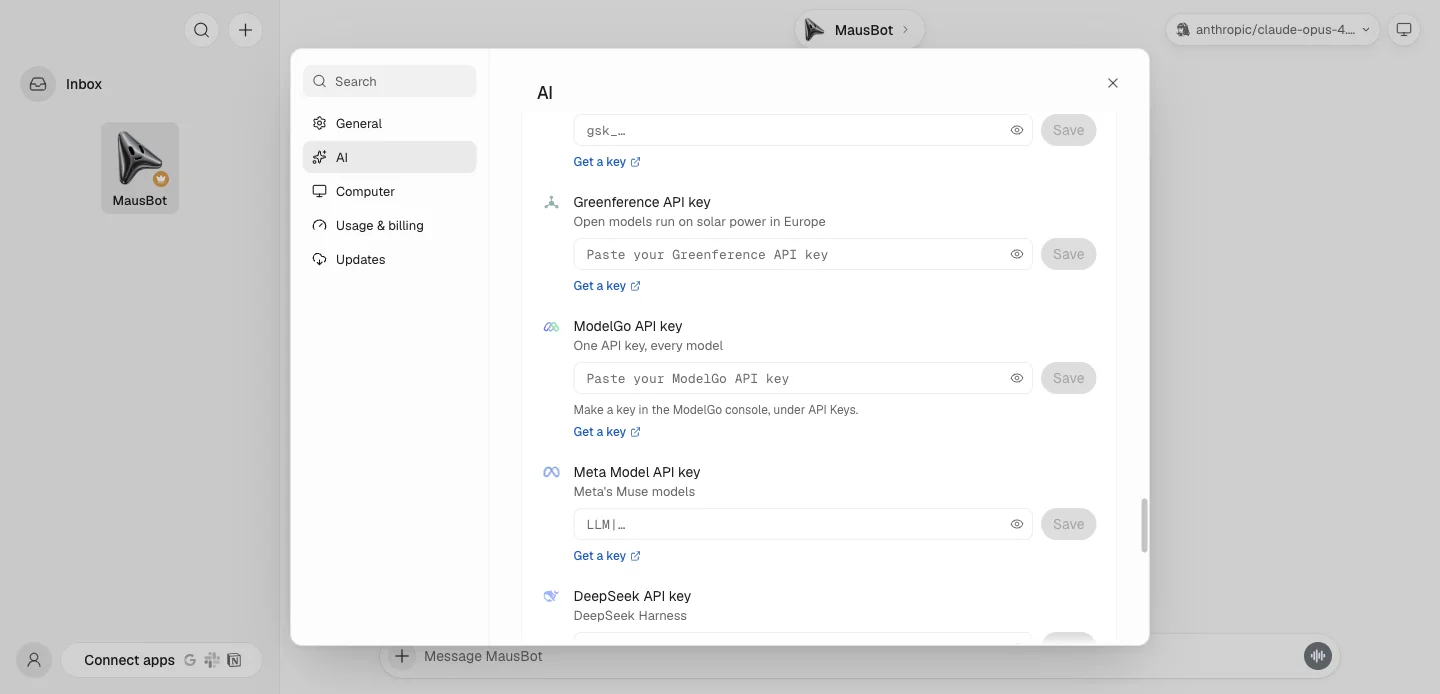
Paste the API key, save it, and run the connection check. On first launch, you can also expand ModelGo on the Connect an AI screen and enter the key there.
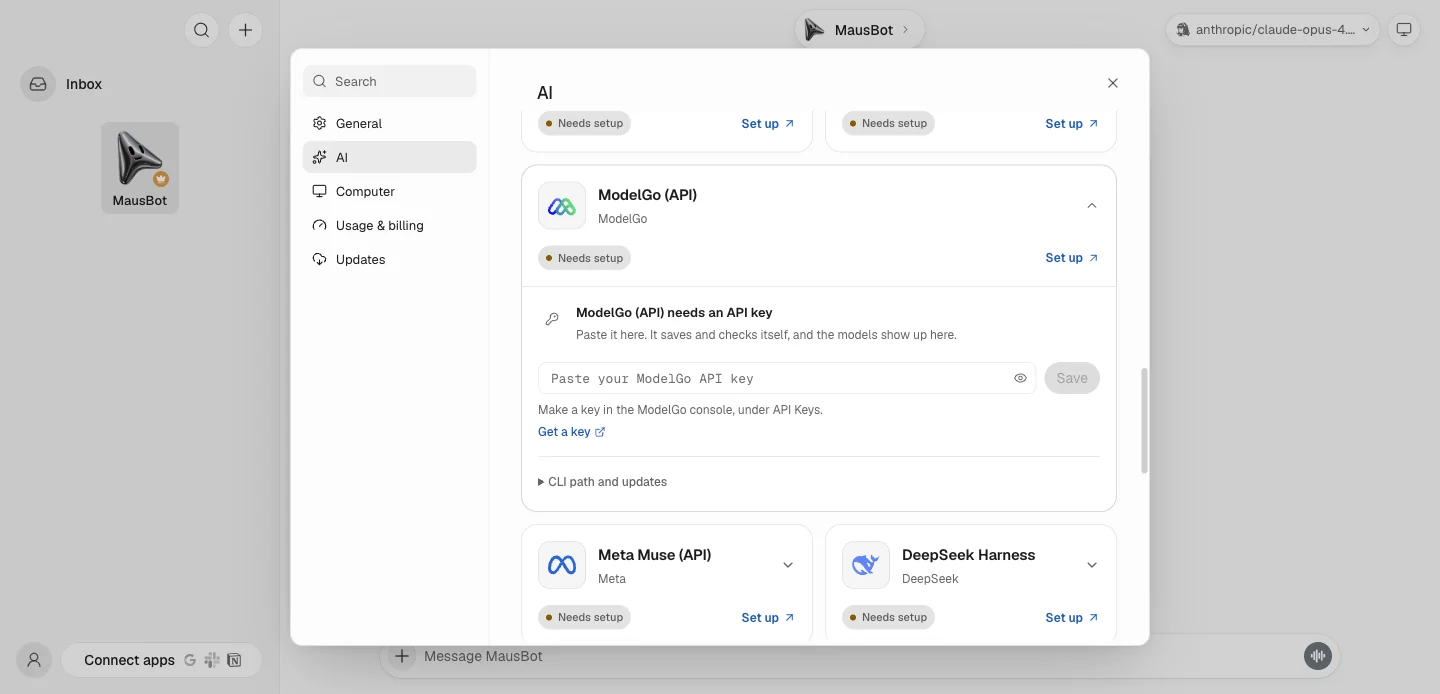
The packaged desktop app keeps AI provider keys in its encrypted desktop store.
4. Choose a ModelGo model
After the key is saved, OpenMausBot requests the model list available to that key automatically.
- Create a bot or open an existing bot.
- Open its model picker.
- Select ModelGo in the provider rail.
- Choose a model and save the change.
You do not need to enter a model ID manually. OpenMausBot currently shows ModelGo models that can output text. A text model that advertises image input can also accept images in supported conversations; image-, video-, and audio-output models do not appear as chat models.
5. Verify the connection
Send a simple message such as:
Introduce yourself in three sentences and list the tasks you can help with.A normal reply confirms the basic connection. If the bot needs tools, verify that separately with a small tool-use task that is safe in your workspace.
Troubleshooting
- ModelGo is missing: update OpenMausBot to 0.1.152 or later.
- No models appear: verify the API key in the ModelGo Console, confirm that it has model access, then check the connection again in Settings → API keys.
- 401 or authentication failure: replace the saved key with a current ModelGo API key.
- 402
billing_insufficient: top up the ModelGo account, then retry. - 403
first_recharge_requiredon a free model: complete the account's first top-up before retrying. - Image or video models are missing: the OpenMausBot model picker currently lists text-output models for chat; this is expected.